> For the complete documentation index, see [llms.txt](https://docs.blockbrain.ai/llms.txt). Markdown versions of documentation pages are available by appending `.md` to page URLs; this page is available as [Markdown](https://docs.blockbrain.ai/de/for-admins/classic-microsoft-integrations/azure-groups-integration.md).
# Azure-Gruppen-Integration
Dieser Leitfaden bietet eine Schritt-für-Schritt-Anleitung zur Einrichtung der Azure-Gruppen-Integration innerhalb der Blockbrain Knowledge Bot Platform.
{% hint style="warning" %}
**Achtung:** Bevor Sie verbinden **Azure-Gruppen**, stellen Sie bitte sicher, dass Sie bereits die [**Entra ID-Integration**](/de/for-admins/classic-microsoft-integrations/entra-id-integration.md)**!**
{% endhint %}
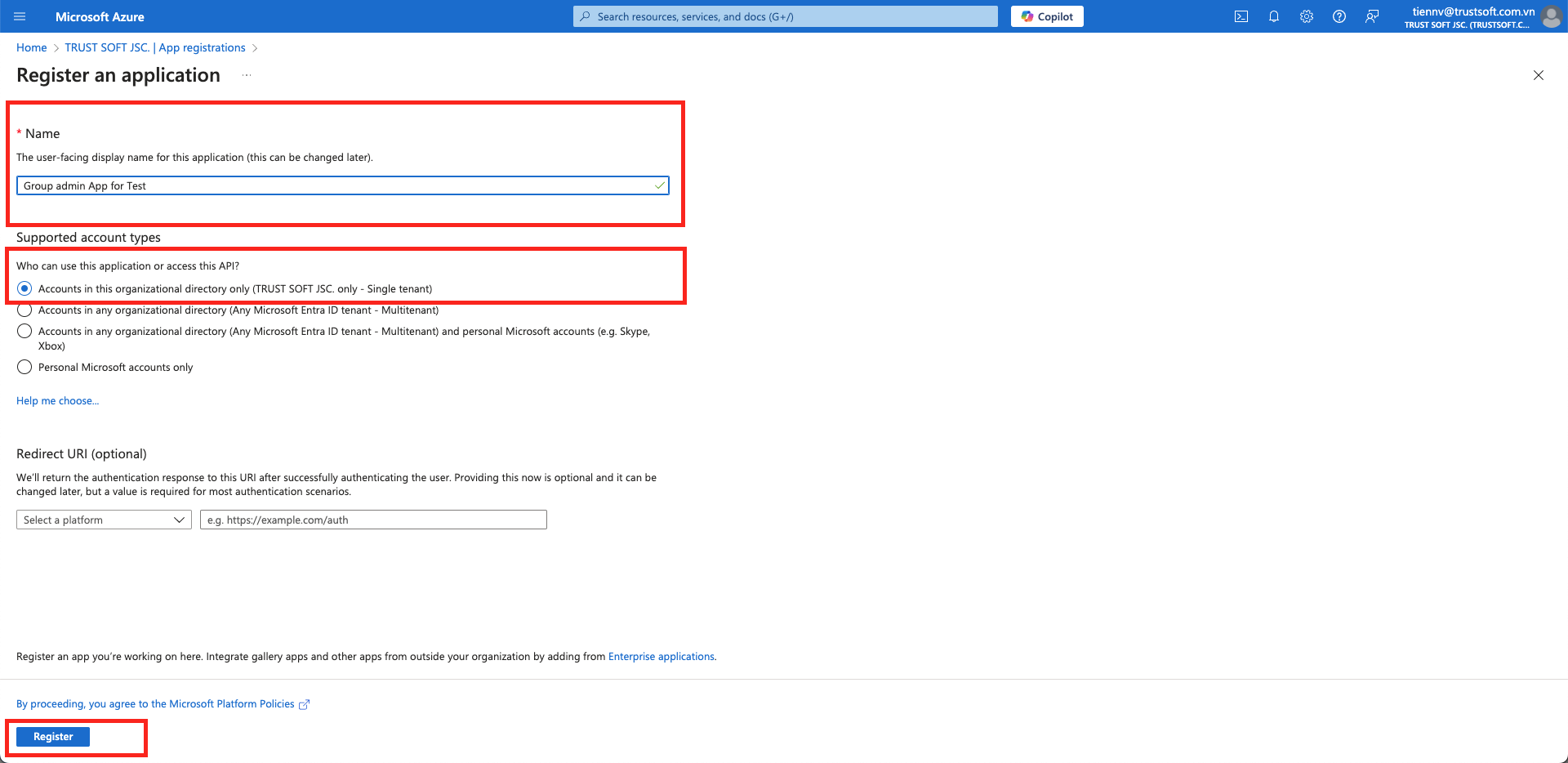
## 1. **Neue Sites-Admin-App erstellen**
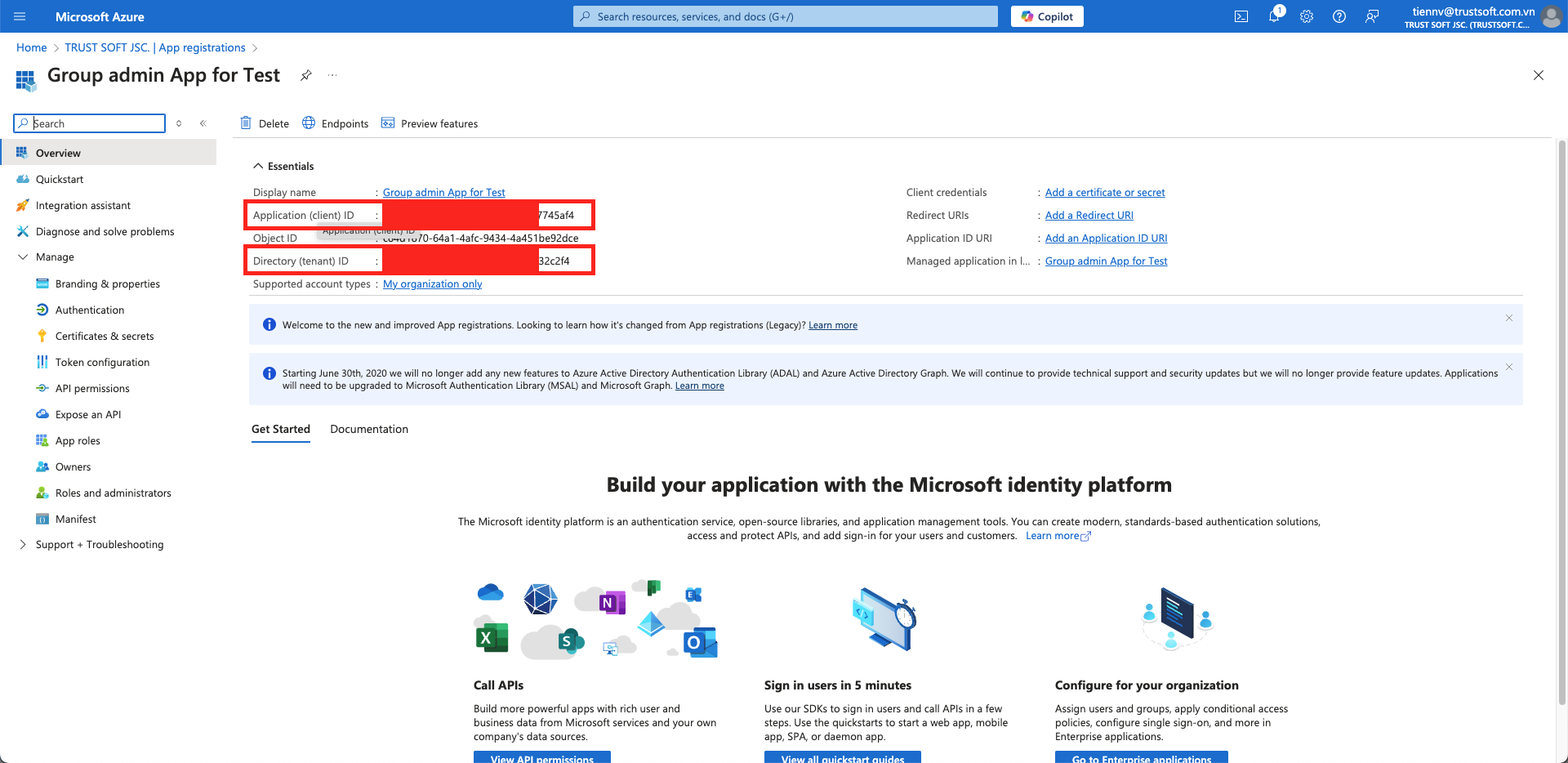
Gehen Sie zur Übersichtsseite und beschaffen Sie sich die **`Anwendungs-(Client-)ID`** und **`Verzeichnis-(Mandanten-)ID`**. \
Speichern Sie diese Informationen in einer Textdatei.
## **2. Graph-API-Berechtigung erteilen**
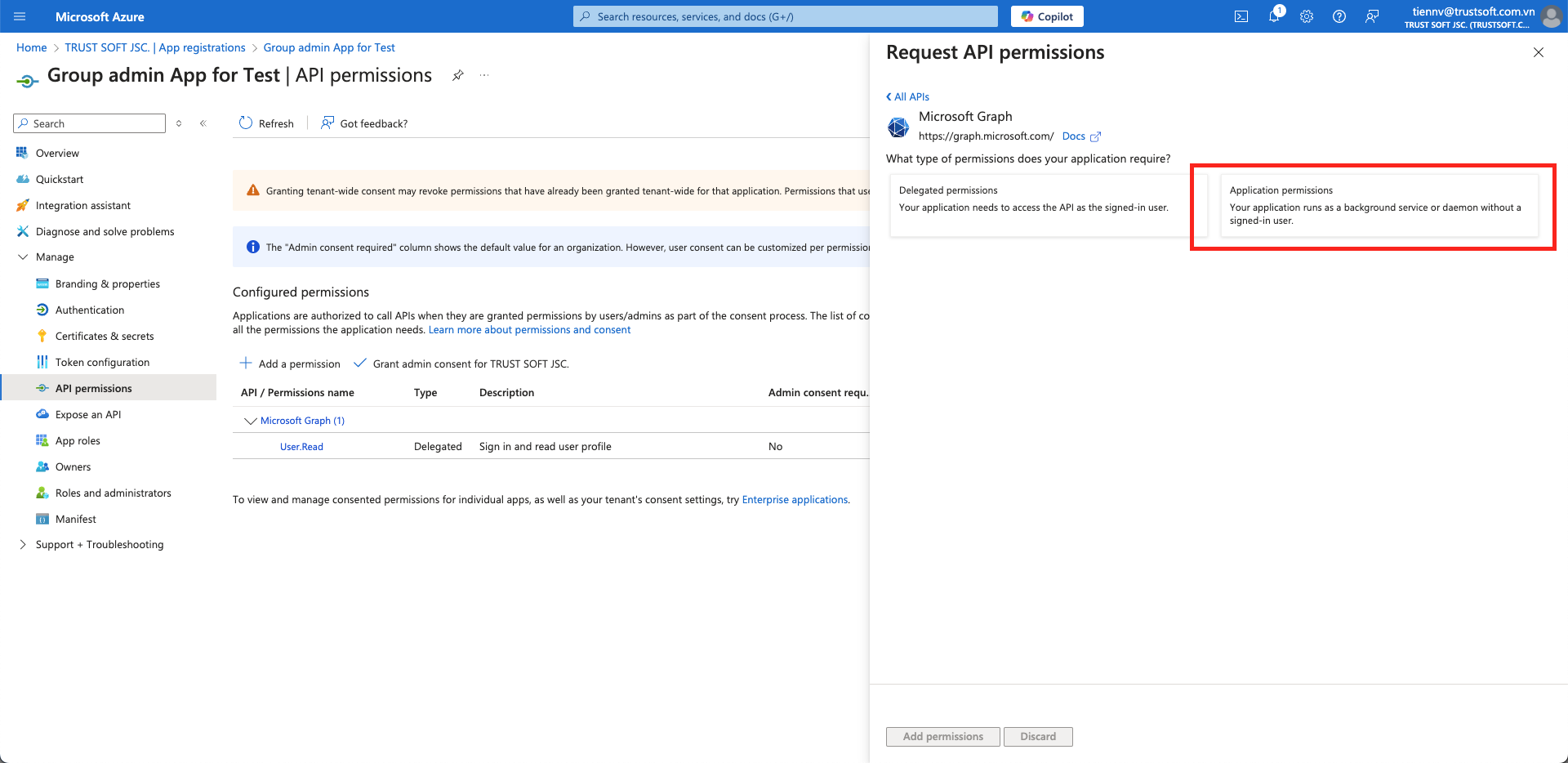
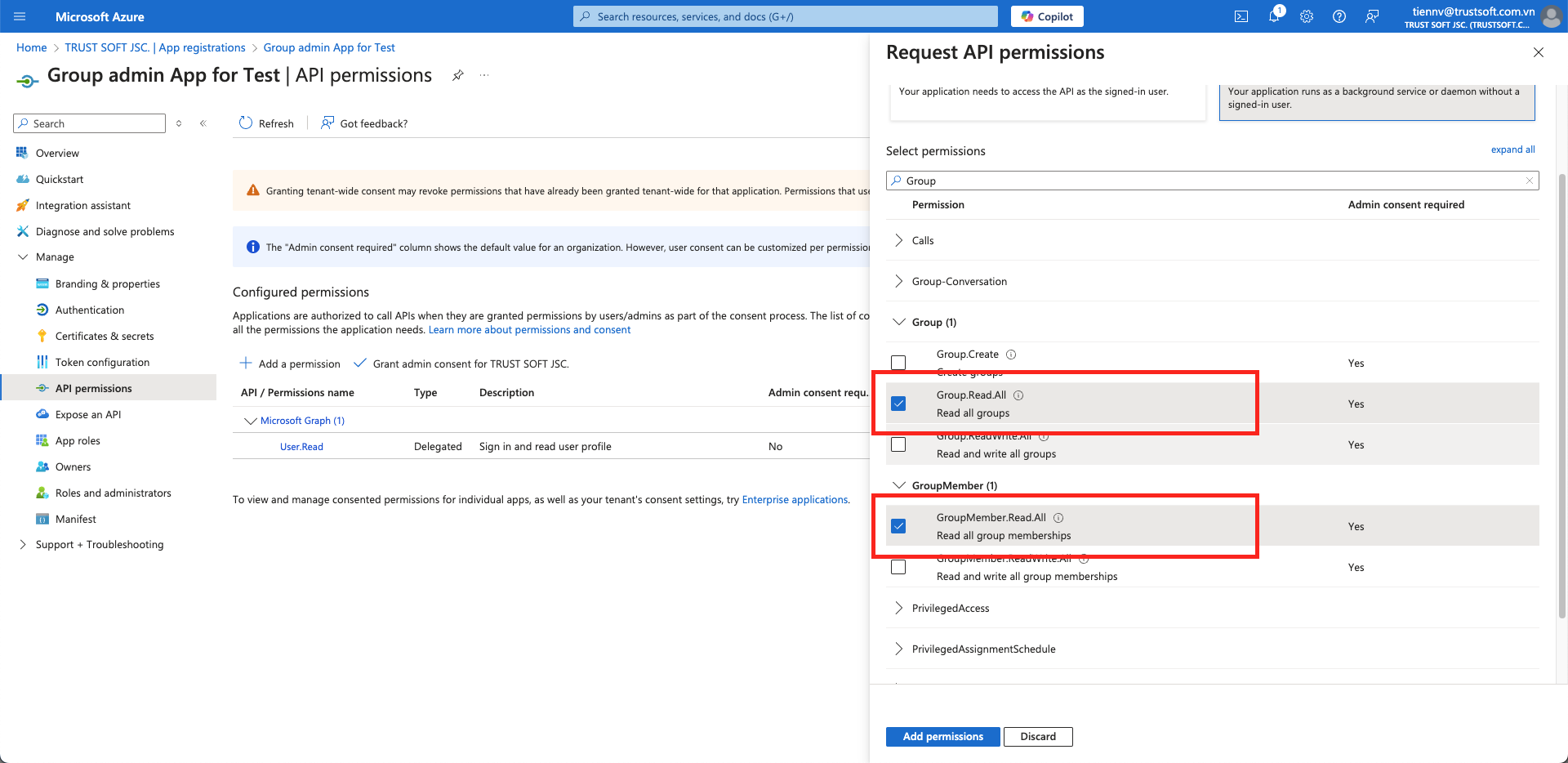
1. Navigieren Sie zu **`API-Berechtigung`** und **`+ Eine Berechtigung hinzufügen`** dort. Verwenden Sie die **`Anwendungsberechtigung`** Option dort.
Verwenden Sie immer Anwendungsberechtigungen statt delegierter Berechtigungen
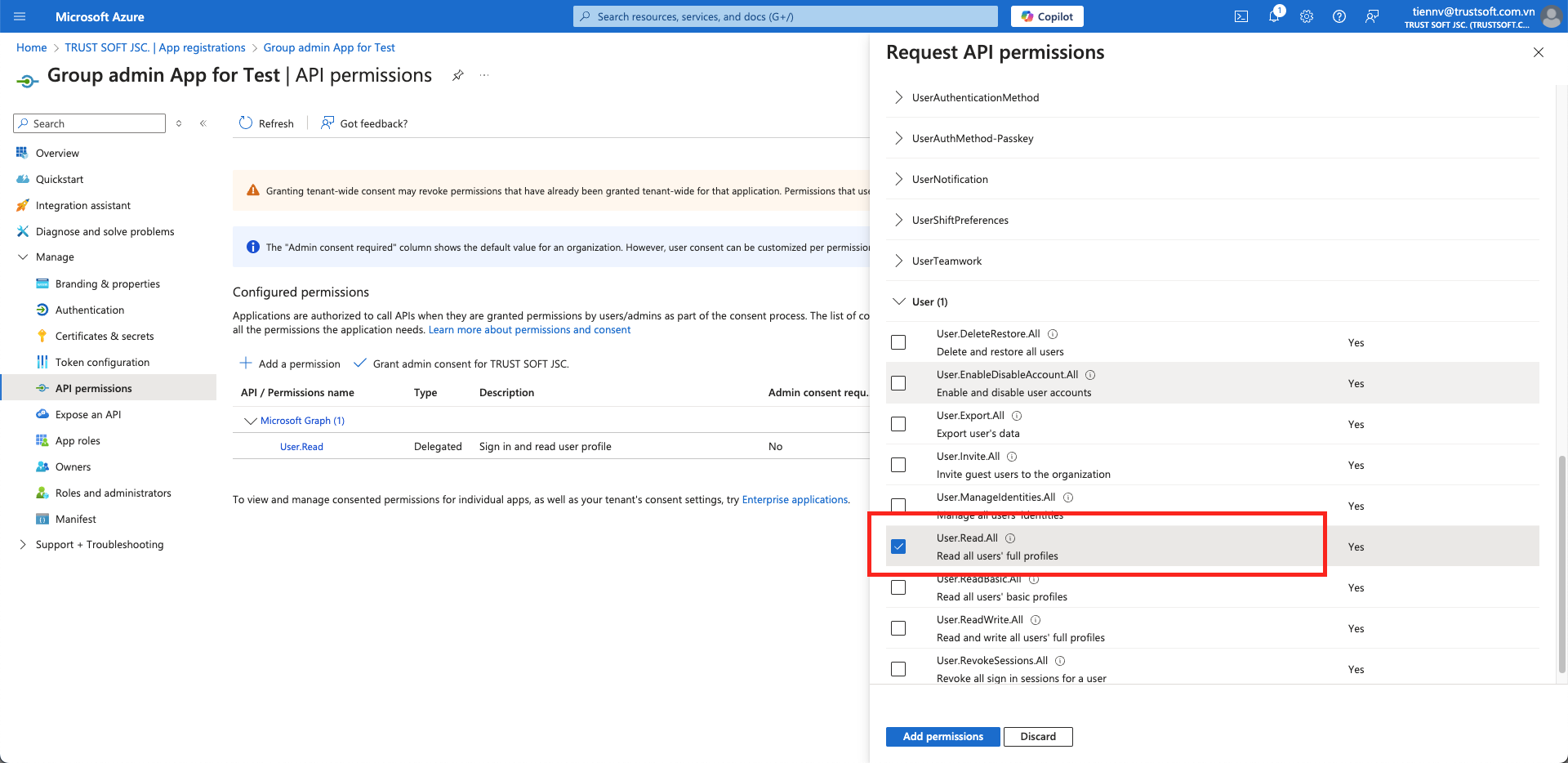
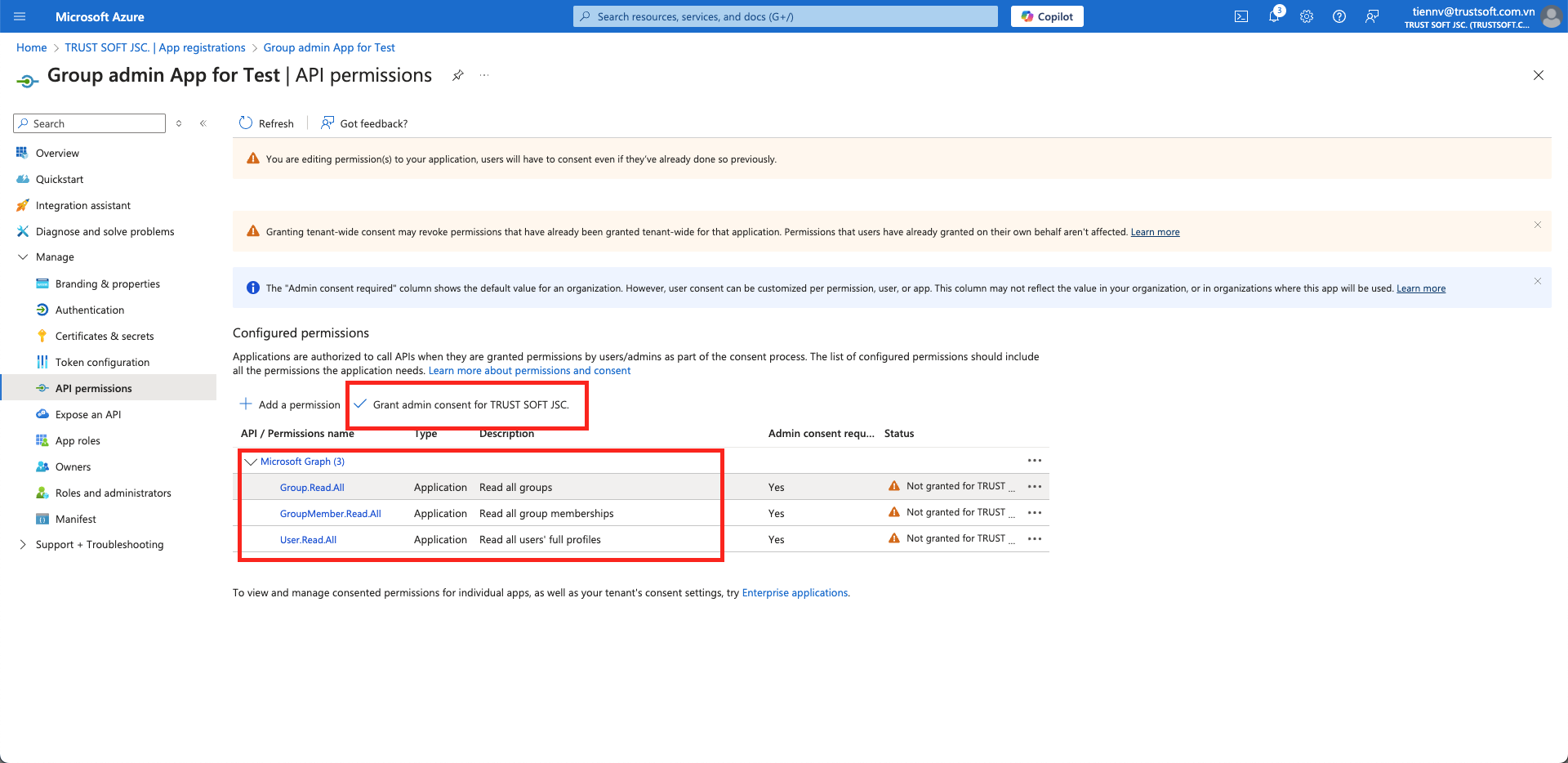
2. Gewähren Sie in der Sites-Admin-App-Registrierung Graph-API-Berechtigungen für **`User.Read.All`**, **`Group.Read.All`**, **`GroupMember.Read.All`**
Der Zugriff auf Azure-Gruppen erfordert immer die Berechtigung User.Read.All (User.Read allein funktioniert nicht)
3. Klicken Sie mit Administratorrechten auf den **`Administratorzustimmung erteilen`** Link, um die Berechtigungen zu genehmigen.
## 3. Einen Client-Secret-Schlüssel erstellen
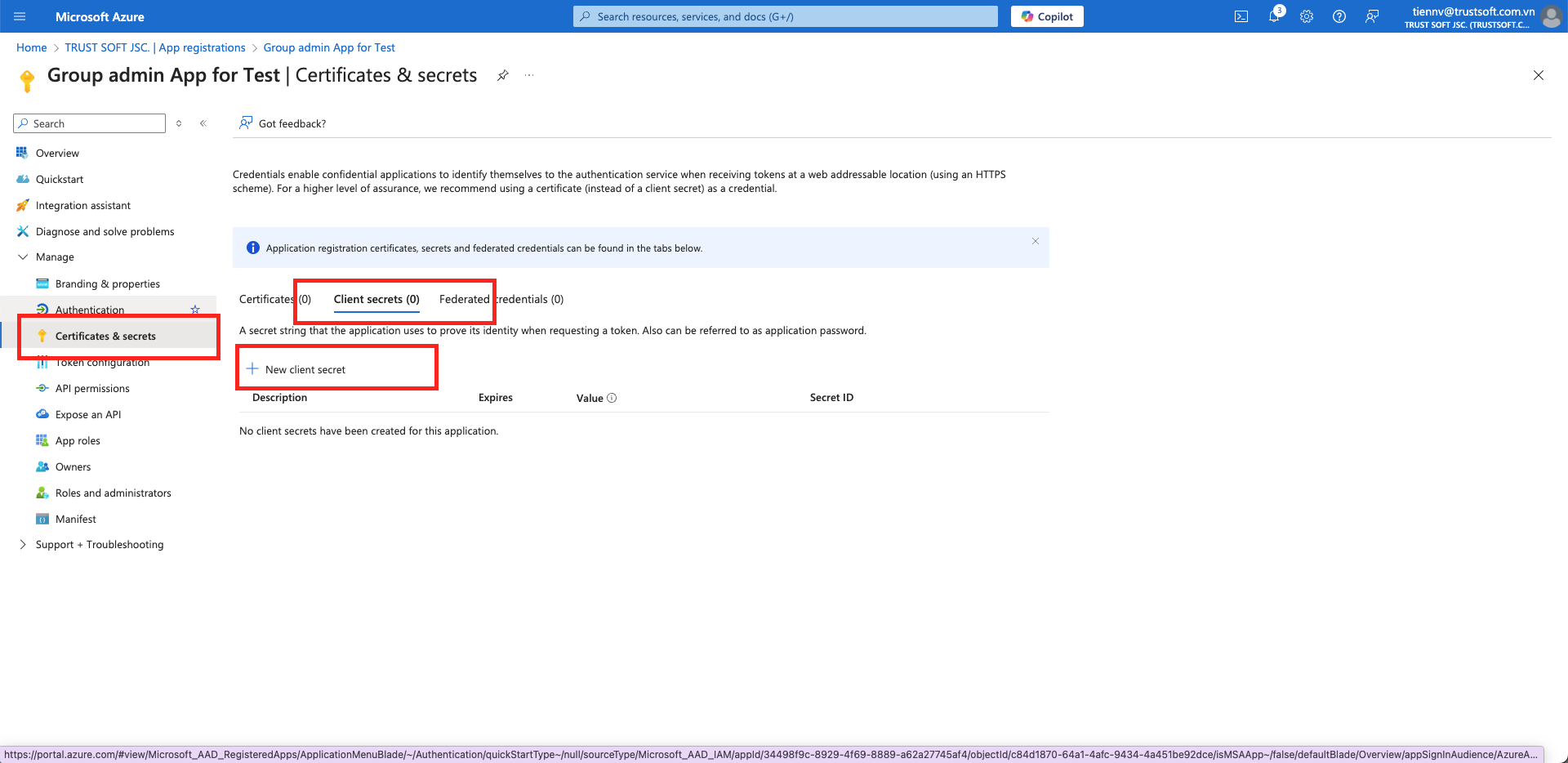
1. Navigieren Sie zur **`Zertifikate & Geheimnisse`** Seite, um Client-Geheimnisse zu erstellen.
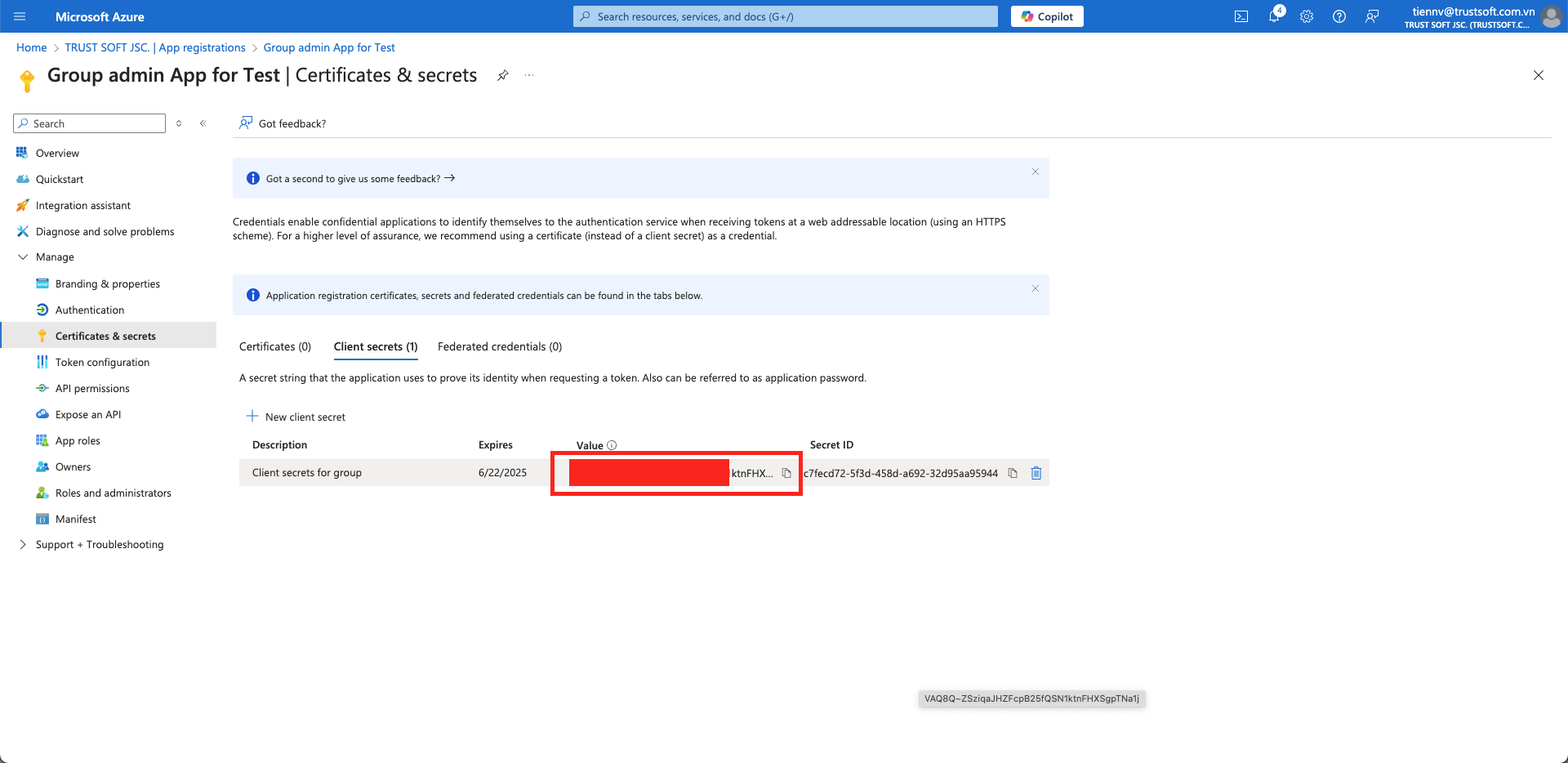
2. Kopieren Sie den **Geheimer Schlüsselwert** (NICHT die Secret-ID) in die Textdatei mit der Client-ID und der Mandanten-ID.
3. Ihre Textdatei sollte jetzt enthalten
## 4. Richten Sie die Azure-Gruppen-Integration ein
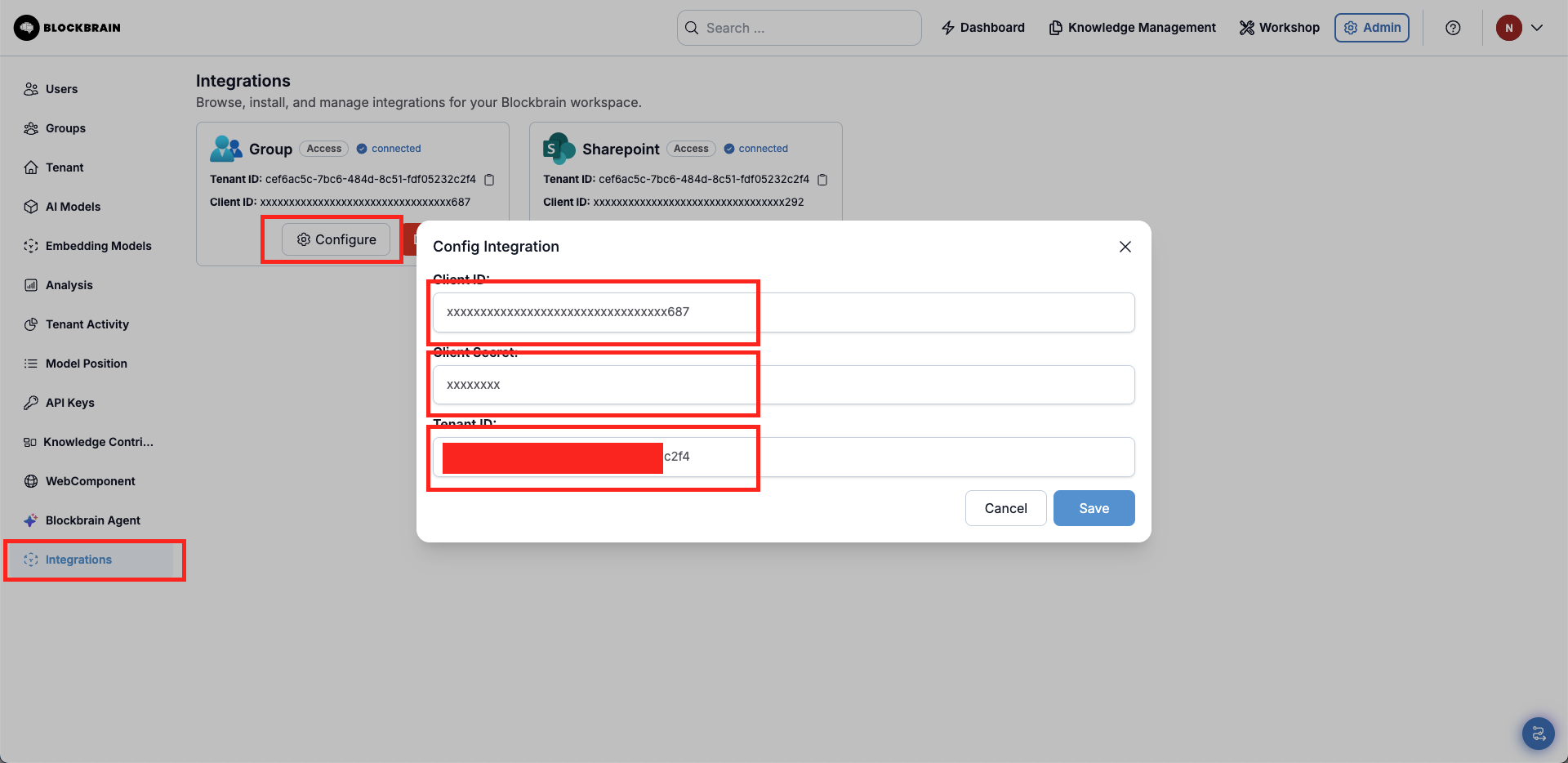
1. Geben Sie im Bereich „Admin-Integration“ in Blockbrain die **`Client-ID`**, **`Geheimer Schlüsselwert`, `Mandanten-ID`** der Zielanwendung sowie eine Liste ausgewählter Websites an, die mit der Knowledge-Bots-Plattform verbunden werden sollen.
## 5. Synchronisieren Sie Ihre Azure-Gruppen
1. Verwenden Sie im Bereich „Admin-Gruppen“ in Blockbrain die **`Azure-Gruppe synchronisieren`** Schaltfläche, um Ihre Gruppen manuell aus Azure zu synchronisieren.
---
# Agent Instructions
This documentation is published with GitBook. GitBook is the documentation platform designed so that both humans and AI agents can read, navigate, and reason over technical content effectively. Learn more at gitbook.com.
## Querying This Documentation
If you need additional information that is not directly available in this page, you can query the documentation by asking a question.
Perform an HTTP GET request on the following URL with the `ask` and `goal` query parameters:
```
GET https://docs.blockbrain.ai/de/for-admins/classic-microsoft-integrations/azure-groups-integration.md?ask=&goal=
```
`ask` is the immediate question: it should be specific, self-contained, and written in natural language.
`goal` is what the user is ultimately trying to achieve, the reason they need the answer. Sharing it helps GitBook give you a better, more relevant answer. A goal is most helpful when it describes the outcome the user wants rather than restating the question. For example, with `ask=how do I create an API token`, a goal like `automate deployments from our CI pipeline` lets GitBook tailor the answer to that use case.
The response will contain a direct answer to the question and relevant excerpts and sources from the documentation.
Use this mechanism when the answer is not explicitly present in the current page, you need clarification or additional context, or you want to retrieve related documentation sections.