> For the complete documentation index, see [llms.txt](https://docs.blockbrain.ai/llms.txt). Markdown versions of documentation pages are available by appending `.md` to page URLs; this page is available as [Markdown](https://docs.blockbrain.ai/de/for-users/add-ins.md).
# Add-ins
Nutzen Sie Blockbrain direkt in Word und Outlook, neben den Dokumenten und E-Mails, an denen Sie arbeiten.
Die Blockbrain-Add-ins bringen Ihren Blockbrain-Assistenten, Bots und Ihr Wissen in Microsoft Word und Outlook. Sie arbeiten einfach im geöffneten Dokument oder in der geöffneten E-Mail weiter, und Blockbrain arbeitet direkt daneben in einem Seitenbereich. Kein Wechsel zum Browser, kein Kopieren und Einfügen.
### Verfügbare Add-ins
{% columns %}
{% column %}
#### Word
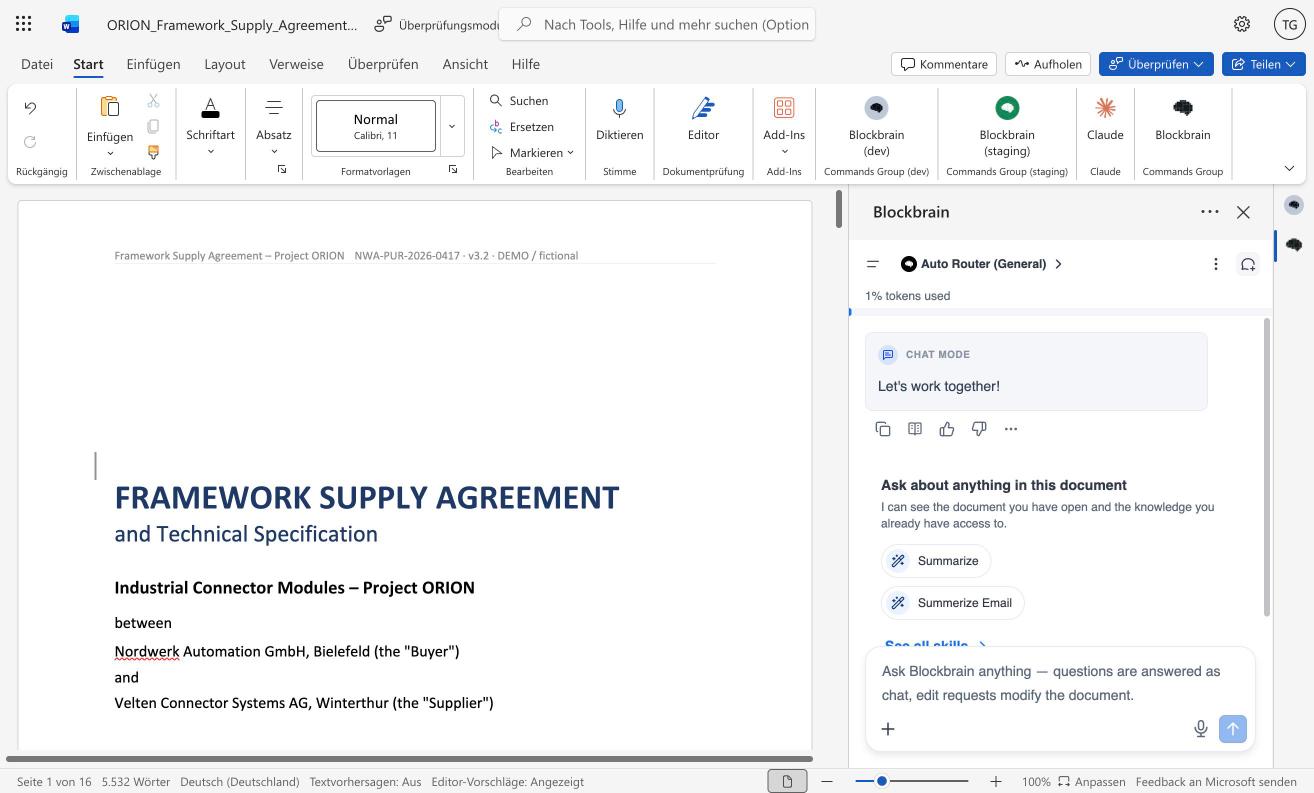
Blockbrain in Word
Fassen Sie das geöffnete Dokument zusammen und stellen Sie Fragen dazu, schreiben Sie Passagen als nachverfolgte Änderungen um, erstellen Sie native Word-Tabellen und binden Sie Dateien und Wissensquellen ein.
[Word-Add-in – Kurze Tour](/de/for-users/add-ins/word-add-in-quick-tour.md)
{% endcolumn %}
{% column %}
#### Outlook
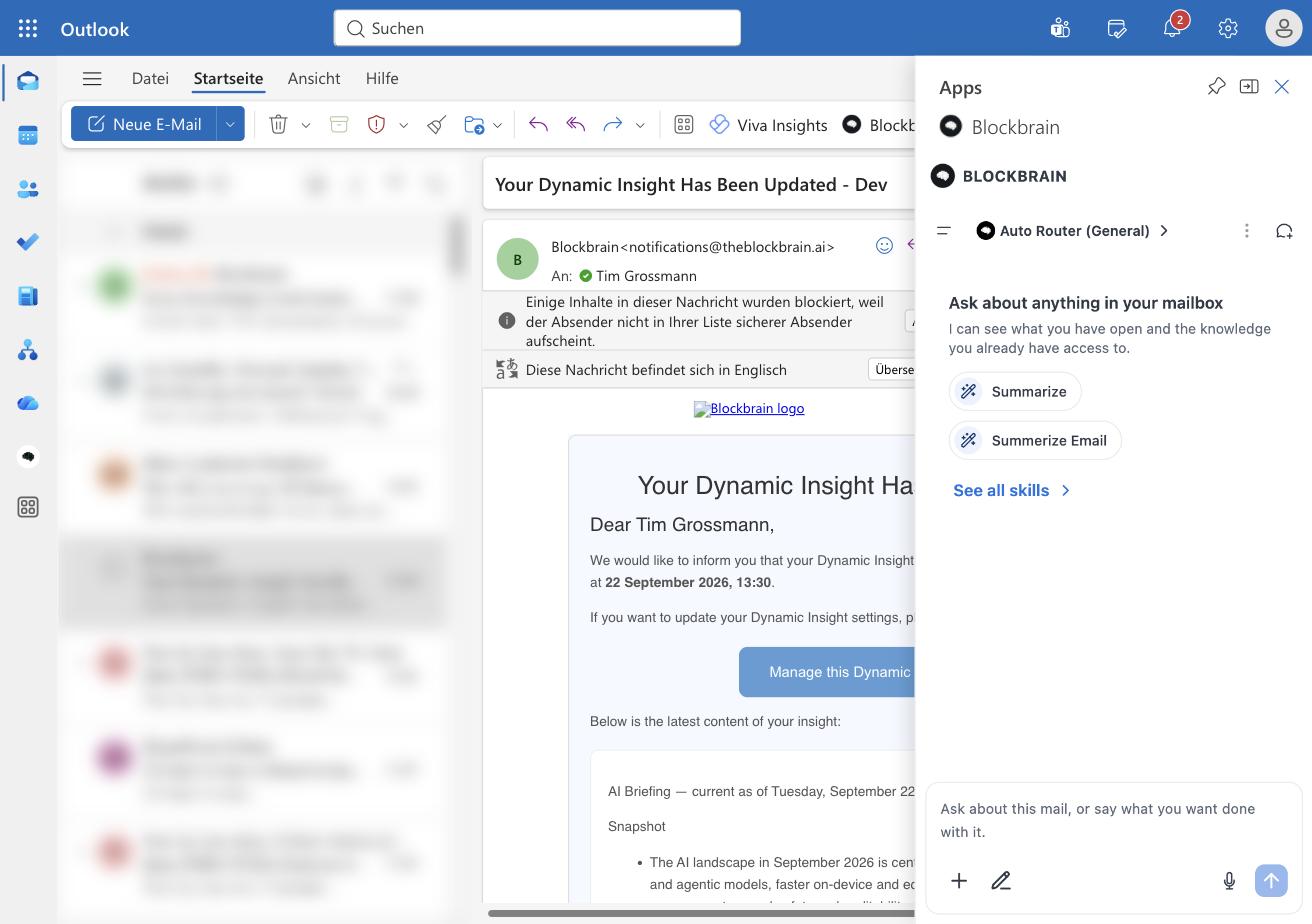
Blockbrain in Outlook
Fassen Sie Threads zusammen, entwerfen Sie Antworten mit einer Tonfallprüfung, erhalten Sie vor einem Meeting eine kurze Zusammenfassung und verwalten Sie Ihren Kalender und Ihr Postfach, wobei jede Änderung auf Ihre Bestätigung wartet.
[Outlook-Add-in – Kurze Tour](/de/for-users/add-ins/outlook-add-in-kurzer-rundgang.md)
{% endcolumn %}
{% endcolumns %}
### Was Sie benötigen
* **Word oder Outlook für Microsoft 365**, auf dem Desktop oder im Web, angemeldet mit Ihrem Arbeitskonto.
* **Ein Blockbrain-Konto.** Sie melden sich mit Ihrer Arbeits-E-Mail im Add-in an.
* **Das Add-in ist installiert.** Normalerweise rollt Ihr IT-Team es für alle aus.
### So erhalten Sie die Add-ins
* **Ihr IT-Team rollt Blockbrain aus.** Es muss nichts installiert werden. Nach dem Rollout erscheint Blockbrain in Word und Outlook. Öffnen Sie es und melden Sie sich mit Ihrer Arbeits-E-Mail an.
* **Sie möchten es zuerst selbst ausprobieren.** [Ein Add-in zum Testen per Sideload laden](/de/for-users/add-ins/ein-add-in-zum-testen-per-sideload-laden.md) für einen kurzen Test und nur mit der Zustimmung Ihres IT-Teams.
* **Sie sind der Admin, der es bereitstellt.** Folgen Sie [Add-ins für Admins](/de/for-admins/add-ins.md).
### Wo Sie Blockbrain finden
| Add-in | Wo Sie es öffnen |
| ------- | -------------------------------------------------------------------------------------------- |
| Word | **Start** Menüband → **Blockbrain** |
| Outlook | Öffnen Sie eine E-Mail und dann **Apps** oder das **Weitere Aktionen** Menü → **Blockbrain** |
{% hint style="info" %}
**Sie behalten die Kontrolle.** In Word werden Bearbeitungen als Vorschläge angezeigt, die Sie übernehmen oder verwerfen, und übernommene Bearbeitungen werden als nachverfolgte Änderungen markiert, die Sie weiterhin ablehnen können. In Outlook bittet Blockbrain um Ihre Bestätigung, bevor Änderungen an Ihrem Kalender oder Postfach vorgenommen werden.
{% endhint %}
### Nächste Schritte
* Neu bei den Add-ins? Beginnen Sie mit dem [Word-Add-in – Kurze Tour](/de/for-users/add-ins/word-add-in-quick-tour.md) oder das [Outlook-Add-in – Kurze Tour](/de/for-users/add-ins/outlook-add-in-kurzer-rundgang.md).
* Blockbrain noch nicht in Ihrem Menüband? Fragen Sie Ihr IT-Team oder laden Sie es mit deren Zustimmung [es für einen kurzen Test per Sideload laden](/de/for-users/add-ins/ein-add-in-zum-testen-per-sideload-laden.md).
---
# Agent Instructions
This documentation is published with GitBook. GitBook is the documentation platform designed so that both humans and AI agents can read, navigate, and reason over technical content effectively. Learn more at gitbook.com.
## Querying This Documentation
If you need additional information that is not directly available in this page, you can query the documentation by asking a question.
Perform an HTTP GET request on the following URL with the `ask` and `goal` query parameters:
```
GET https://docs.blockbrain.ai/de/for-users/add-ins.md?ask=&goal=
```
`ask` is the immediate question: it should be specific, self-contained, and written in natural language.
`goal` is what the user is ultimately trying to achieve, the reason they need the answer. Sharing it helps GitBook give you a better, more relevant answer. A goal is most helpful when it describes the outcome the user wants rather than restating the question. For example, with `ask=how do I create an API token`, a goal like `automate deployments from our CI pipeline` lets GitBook tailor the answer to that use case.
The response will contain a direct answer to the question and relevant excerpts and sources from the documentation.
Use this mechanism when the answer is not explicitly present in the current page, you need clarification or additional context, or you want to retrieve related documentation sections.