> For the complete documentation index, see [llms.txt](https://docs.blockbrain.ai/llms.txt). Markdown versions of documentation pages are available by appending `.md` to page URLs; this page is available as [Markdown](https://docs.blockbrain.ai/for-admins/add-ins/enterprise-ux-and-governance.md).
# Enterprise UX & Governance
How your IT team controls which add-in version users run, when it changes, and who gets it.
The Blockbrain add-ins for Word and Outlook are built to be rolled out and governed by your IT team. You decide which version your users run, when they move to a newer one, and who gets the add-in at all. This page explains how versioning works, which manifest link to use, and how to check what your users are running.
{% hint style="success" %}
**In short:** install from the **release line** link, for example `https://ms-word-addin.theblockbrain.ai/v/2.0.0/manifest.xml`. The add-in your users run then only changes when an administrator uploads a manifest again.
{% endhint %}
### How versioning works
Every release of an add-in has its own install page and its own manifest. A versioned manifest points at one fixed build, and later Blockbrain releases never overwrite that build.
* **Each release has its own page and manifest.** Word and Outlook each publish one install page per release line.
* **Your users stay on the build you installed.** It changes only when an administrator uploads a manifest again.
* **A release line never jumps to a newer version.** Its link always gives the newest fix on that line, and nothing from later lines.
* **Every exact build stays listed.** The install page lists each build on the line, in case your change process needs one exact build.
#### Reading a version number
A version has four numbers, for example `2.0.0.1`.
| Part | Example | What it means |
| ------------ | ------------------------- | ----------------------------------------------------------------------------------------------------------- |
| Release line | `2.0.0` | The first three numbers. One release with its set of features. |
| Fix | the last `1` in `2.0.0.1` | A fix on that release line. It contains everything on the line plus the fix, and nothing from a newer line. |
So `2.0.0.0` is the first build of the 2.0.0 line and `2.0.0.1` is the first fix on it. A newer line such as `2.1.0` reaches your users only if you upload its manifest.
### Choose your manifest link
Each add-in offers three kinds of manifest link. They differ in whether updates reach your users on their own.
| Link type | Example (Word) | What your users get | Best for |
| ------------------------------ | --------------------------------------------------------------- | --------------------------------------------------------------------------------------------------------------------- | ------------------------------------------------ |
| **Release line** (recommended) | `https://ms-word-addin.theblockbrain.ai/v/2.0.0/manifest.xml` | The newest fix on the 2.0.0 line. Never a newer line. | Production rollouts |
| **Exact build** | `https://ms-word-addin.theblockbrain.ai/v/2.0.0.0/manifest.xml` | Exactly build 2.0.0.0 and nothing else | Change processes that approve one specific build |
| **Always latest** | `https://ms-word-addin.theblockbrain.ai/manifest.xml` | Blockbrain's current release. New features and fixes reach users the next time they open the pane, without an upload. | Test groups that always want the newest version |
{% hint style="info" %}
**What a versioned link pins.** A release line or exact build link fixes the add-in code that runs inside Word or Outlook. The Blockbrain platform behind it, such as agents, models and your knowledge bases, keeps receiving the regular Blockbrain platform updates.
{% endhint %}
### Current releases
| Add-in | Release line | Install page | Manifest link |
| ------- | ------------ | ----------------------------------------------------------------------------------------------- | ---------------------------------------------------------------- |
| Word | 2.0.0 | [ms-word-addin.theblockbrain.ai/v/2.0.0](https://ms-word-addin.theblockbrain.ai/v/2.0.0/) | `https://ms-word-addin.theblockbrain.ai/v/2.0.0/manifest.xml` |
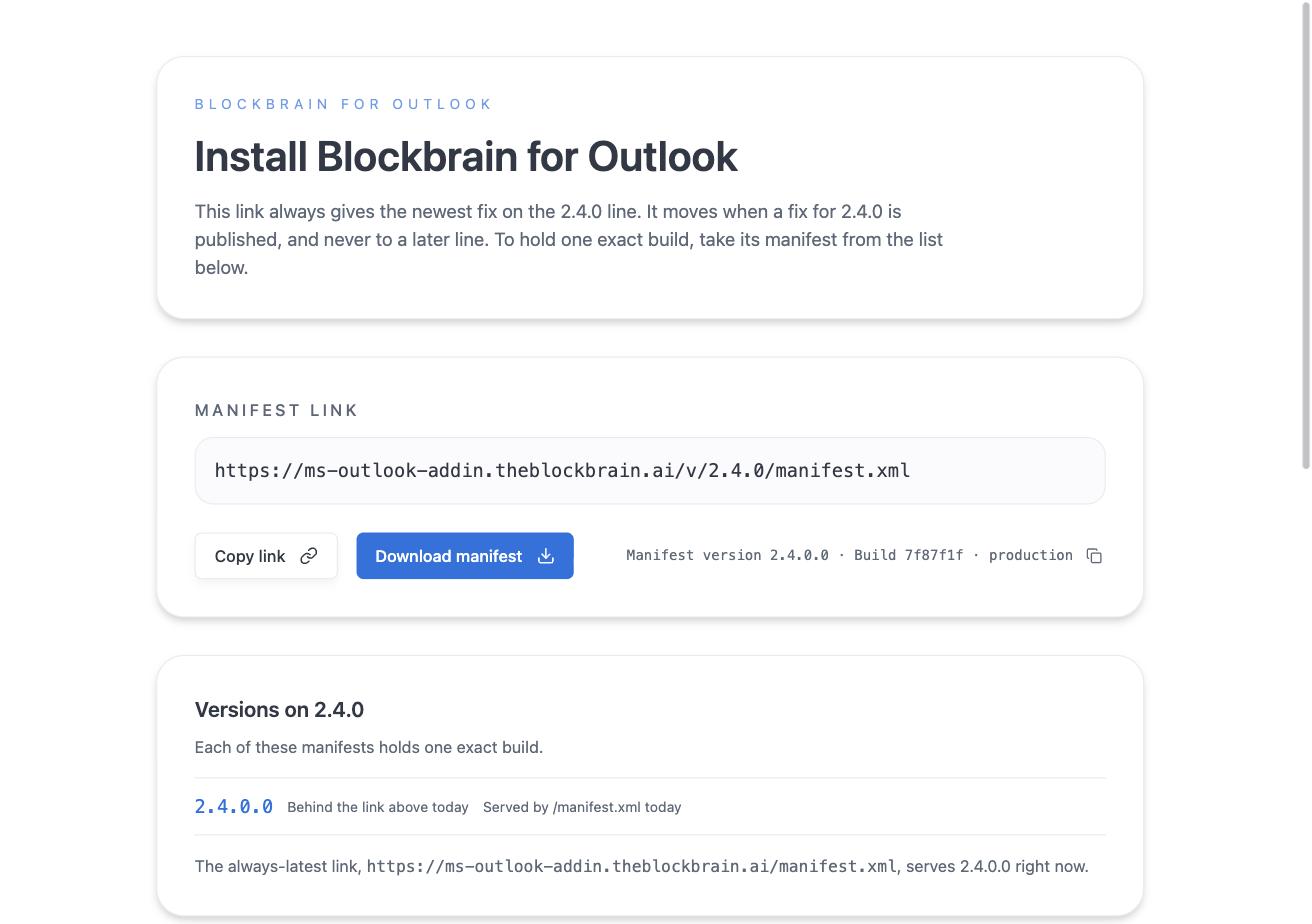
| Outlook | 2.4.0 | [ms-outlook-addin.theblockbrain.ai/v/2.4.0](https://ms-outlook-addin.theblockbrain.ai/v/2.4.0/) | `https://ms-outlook-addin.theblockbrain.ai/v/2.4.0/manifest.xml` |
Each install page shows the manifest link to copy, the exact manifest version and build behind it, and every build on the line.
Word 2.0.0 install page
Outlook 2.4.0 install page
### Install or move to a version
{% stepper %}
{% step %}
#### Open the install page
Open the install page of the release you want, listed under Current releases above.
{% endstep %}
{% step %}
#### Copy the manifest link
Select **Copy link** to use the release line. To hold one exact build instead, take its manifest from the list of versions on the same page.
{% endstep %}
{% step %}
#### Add it in the Microsoft 365 admin center
Go to **Settings → Integrated apps → Upload custom apps**, choose **Office Add-in** and provide the manifest link. The full walkthrough is in the [Word](/for-admins/add-ins/word.md) and [Outlook](/for-admins/add-ins/outlook.md) setup guides.
{% endstep %}
{% step %}
#### Assign users and allow time for the rollout
Assign the whole organization, a group, or individual users. Microsoft usually shows the add-in within an hour of the upload, and sometimes longer on large tenants.
{% endstep %}
{% endstepper %}
To move to a newer release later, give Microsoft 365 the manifest link of the new release line. Until an administrator does this, your users keep the build they have.
### Check which version your users run
There are two numbers. Share both when you contact Blockbrain support.
| Number | Where to find it | What it tells you |
| ------------------------------------ | --------------------------------------------------------------------------------------------------------------- | ------------------------------------------ |
| **Manifest version**, e.g. `2.0.0.0` | Microsoft 365 admin center under **Integrated apps**, and on the install page | Which manifest your organization installed |
| **Build**, e.g. `7f87f1f` | On the install page, next to the manifest version. In Word, users also see it in the add-in under **Settings**. | Which code the task pane runs |
A user's build matches the install page once they reopen the pane.
### More controls for enterprise rollouts
| Control | How it works |
| --------------------------------------- | --------------------------------------------------------------------------------------------------------------------------------------- |
| **Central deployment** | Deployed and assigned from the Microsoft 365 admin center. No local installation and no downloads on user devices. |
| **One manifest for every organization** | The same manifest works for every Blockbrain customer. Blockbrain works out which organization a user belongs to when they sign in. |
| **Sign-in and data region** | Users sign in with their work email and pick the Blockbrain region their organization uses: Global or EU Sovereign. |
| **Users stay in control** | Outlook asks the user before anything is sent. In Word, edits can be reviewed as tracked changes that the user accepts or rejects. |
| **Activation for your organization** | Blockbrain activates the add-ins for your organization before rollout. Contact your Key Account Manager before you deploy the manifest. |
### Frequently asked questions
Can a Blockbrain release change the add-in our users run?
Not if you install from a release line or exact build link. The manifest points at one fixed build that later releases never overwrite, so your users move to a new version only when an administrator uploads a manifest again. The always-latest link is the exception: it exists so that new releases arrive on their own.
We installed the add-in before versioning existed. What are we on?
If your organization installed `https://ms-word-addin.theblockbrain.ai/manifest.xml` or `https://ms-outlook-addin.theblockbrain.ai/manifest.xml`, you are on the always-latest link. To hold a version, add the release line link of the current release in the Microsoft 365 admin center.
Which release should we choose?
The newest release line listed under Current releases, unless your Key Account Manager has agreed a different one with you.
---
# Agent Instructions
This documentation is published with GitBook. GitBook is the documentation platform designed so that both humans and AI agents can read, navigate, and reason over technical content effectively. Learn more at gitbook.com.
## Querying This Documentation
If you need additional information that is not directly available in this page, you can query the documentation by asking a question.
Perform an HTTP GET request on the following URL with the `ask` and `goal` query parameters:
```
GET https://docs.blockbrain.ai/for-admins/add-ins/enterprise-ux-and-governance.md?ask=&goal=
```
`ask` is the immediate question: it should be specific, self-contained, and written in natural language.
`goal` is what the user is ultimately trying to achieve, the reason they need the answer. Sharing it helps GitBook give you a better, more relevant answer. A goal is most helpful when it describes the outcome the user wants rather than restating the question. For example, with `ask=how do I create an API token`, a goal like `automate deployments from our CI pipeline` lets GitBook tailor the answer to that use case.
The response will contain a direct answer to the question and relevant excerpts and sources from the documentation.
Use this mechanism when the answer is not explicitly present in the current page, you need clarification or additional context, or you want to retrieve related documentation sections.