# MS Teams Agent

<table data-card-size="large" data-view="cards"><thead><tr><th></th><th></th><th data-hidden data-card-cover data-type="image">Cover image</th></tr></thead><tbody><tr><td><strong>Overview</strong></td><td><ul><li>Search and retrieve Teams messages, chats, and channel conversations through Blockbrain</li><li>Send messages to Teams channels or chats</li><li>Access and manage Teams meetings, including scheduling and joining</li><li>Retrieve and share files stored in Teams channels</li><li>Access team, channel, and user metadata for collaboration and automation</li><li>Automate workflows and notifications across Microsoft Teams</li></ul></td><td><a href="/files/ikR2AL5octrVSvEocI7Z">/files/ikR2AL5octrVSvEocI7Z</a></td></tr><tr><td><strong>Prerequisites</strong></td><td><ul><li>Complete the <a href="https://docs.en.theblockbrain.ai/for-users/agents">general setup steps</a> from the main AI Agents page</li><li>Ensure users have active Microsoft 365 accounts with access to Microsoft Teams</li><li>Verify appropriate Microsoft 365 licensing for Teams and related services</li></ul></td><td><a href="/files/X7MpGP1nVARHAWPFype1">/files/X7MpGP1nVARHAWPFype1</a></td></tr></tbody></table>

### Azure App Registration Configuration

#### Required API Permission

Add the following Microsoft Graph permissions to your app registration:

| Permission                 | Type      | Description                                                                                                                                                     |
| -------------------------- | --------- | --------------------------------------------------------------------------------------------------------------------------------------------------------------- |
| `offline_access`           | Delegated | Maintain access to data you have given it access to                                                                                                             |
| `Calendars.ReadWrite`      | Delegated | Read and write user calendars, including Teams meeting events                                                                                                   |
| `Chat.ReadBasic.All`       | Delegated | Read the names, descriptions, and basic properties of all channels in the organization — required for correct channel routing and messaging operations in Teams |
| `ChannelMessage.Send`      | Delegated | Send messages as the user in any channel in Microsoft Teams                                                                                                     |
| `Chat.ReadBasic`           | Delegated | Read basic information about the user's chats in Teams                                                                                                          |
| `Chat.ReadWrite`           | Delegated | Read and write all chat messages the user can access in Teams                                                                                                   |
| `Files.Read`               | Delegated | Read all files the signed-in user can access, including files shared in Teams channels and chats                                                                |
| `OnlineMeetings.ReadWrite` | Delegated | Read and create online meetings on behalf of the user in Teams                                                                                                  |
| `Presence.ReadWrite`       | Delegated | Read and update the user's presence information in Teams                                                                                                        |
| `Team.ReadBasic.All`       | Delegated | Read the names, descriptions, and basic properties of all teams in the organization                                                                             |
| `User.ReadBasic.All`       | Delegated | Read basic profiles of all users in the organization                                                                                                            |
| `openid`                   | Delegated | Sign in the user and allow the app to read the user's basic profile information                                                                                 |

> As alternative, you can use the `.default` scope (uses all scopes set in the app).

#### Redirect URL

* Add <https://nango.theblockbrain.ai/oauth/callback> as allowed redirect URL to your app registration

#### Permission Configuration Steps

1. In your Azure app registration, go to **API permissions**
2. Click **"Add a permission"** > **Microsoft Graph** > **Delegated permissions**
3. Search for and select each required permission
4. Click **"Add permissions"**
5. Click **"Grant admin consent"** (recommended for organization-wide deployment)

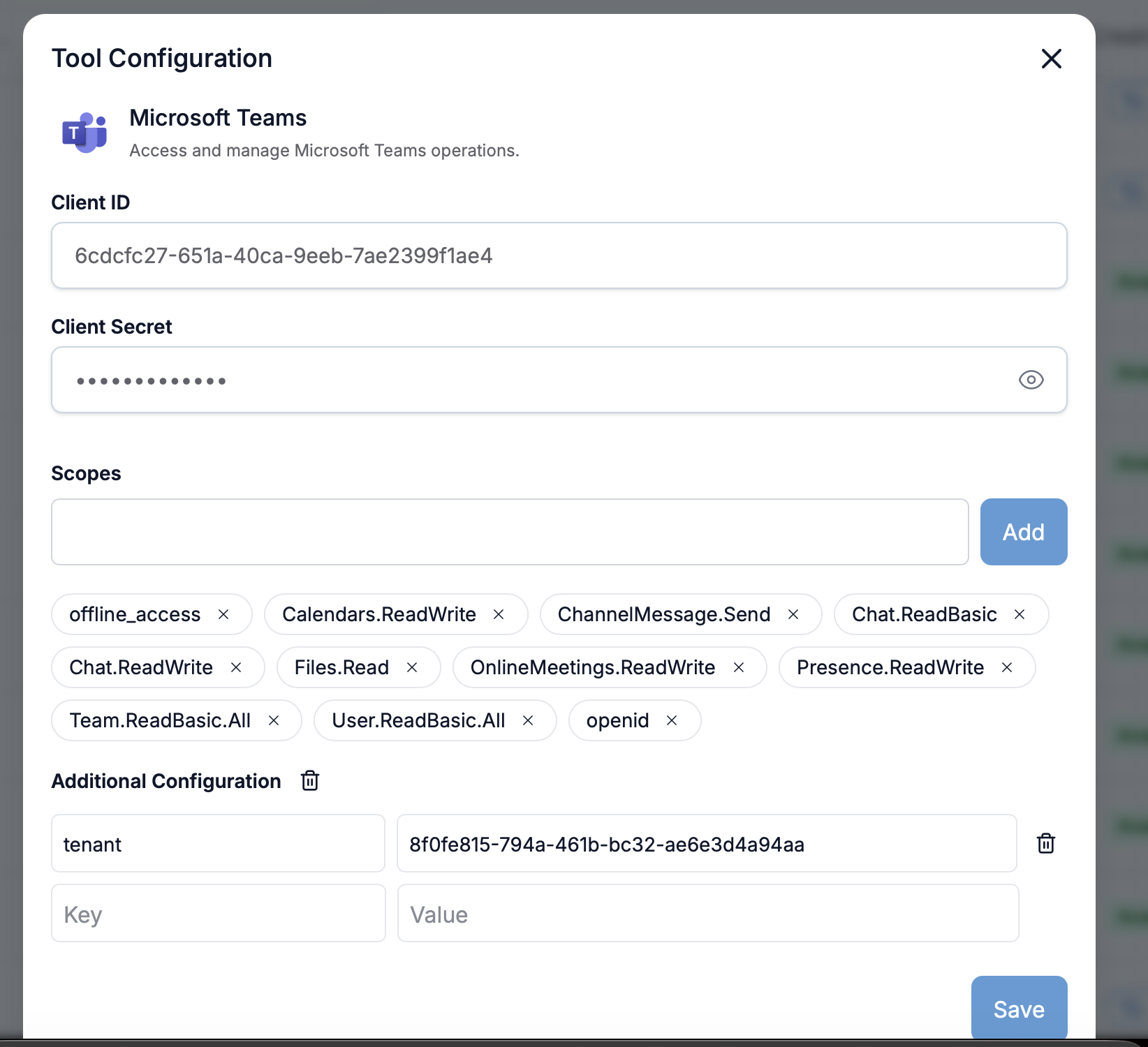
### Agent Configuration in Blockbrain

<div data-with-frame="true"><figure><img src="/files/7I4JDIkY1p7zgTwbWHTA" alt=""><figcaption></figcaption></figure></div>

<div data-with-frame="true"><figure><img src="/files/OvIevKYVxRp0As8ll7Xi" alt=""><figcaption></figcaption></figure></div>

1. **Access Agent Settings**:
   * Navigate to your Blockbrain admin panel
   * Go to **Agents** > **MS Teams Agent**
   * Click **"Configure"**
2. **Enter Azure Credentials**:
   * **Client ID**: Enter the Application ID from your Azure app registration
   * **Client Secret**: Paste the client secret you generated
   * **Tenant**: Enter your Azure tenant ID
3. **Configure OAuth Scopes**:
   * Add each required scope individually using the **"Add"** button as mentioned [here](#required-api-permissions)
   * Each scope will appear as a removable tag
   * Use the **"X"** button to remove incorrect scopes
4. **Additional Configuration** (Optional):
   * Add custom key-value pairs if needed for specific MS Teams Agent requirements
   * Configure any organization-specific settings as necessary
5. **Save Configuration**:
   * Click **"Save"** to apply the settings
   * Wait for the confirmation message

### Alternative: Admin Consent Configuration

For simplified scope management with admin pre-approval:

1. In Azure, grant admin consent for all required Microsoft Graph permissions
2. In Blockbrain configuration, use the `.default` scope instead of individual scopes
3. This eliminates the need for users to consent to individual permissions

### Testing the MS Teams Agent

#### Verification Steps

1. **Connection Test**:
   * Use the built-in connection test in Blockbrain
   * Verify successful authentication with Microsoft Graph
2. **User Testing**:
   * Have a test user connect their Microsoft account
   * Attempt to access a known Teams channel, chat, or meeting
   * Verify message sending, chat retrieval, and meeting access functionality
3. **Permission Validation**:
   * Check that the agent can access the appropriate Teams, channels, and chats
   * Confirm read/write permissions are working correctly

### Common MS Teams Integration Use Cases

* **Message Search**: Find and retrieve messages across Teams channels and chats
* **Message Sending**: Send messages to channels or chats via the agent
* **Meeting Management**: Access, create, or update Teams meetings
* **File Access**: Retrieve files shared in Teams channels or chats
* **Presence & User Info**: Read and update user presence, access user and team metadata

### Troubleshooting

#### Authentication Issues

**Problem**: "Insufficient privileges" when accessing Teams resources

* **Solution**: Confirm the app registration has all necessary Teams and chat permissions (e.g., `Chat.ReadWrite`, `ChannelMessage.Send`).
* **Check**: Verify the user has access to the relevant Teams, channels, or chats in your organization.

#### Permission Errors

**Problem**: "Insufficient privileges" when accessing SharePoint

* **Solution**: Confirm the app registration has `Sites.Read.All` and `Files.Read.All` permissions
* **Check**: Verify the user has SharePoint access in your organization

#### Scope Configuration Issues

**Problem**: Scopes not saving correctly

* **Solution**: Add each scope individually using the "Add" button
* **Check**: Remove any duplicate or incorrect scopes using the "X" button

### Security Considerations

* **Data Access**: The agent inherits the user's Teams and Microsoft 365 permissions
* **Scope Limitation**: Access is limited to Teams, channels, and chats the authenticated user can access
* **Data Privacy**: Data is processed according to Blockbrain's data handling policies
* **Audit Trail**: Teams access is logged in both Azure AD and Microsoft 365 audit logs

### Next Steps

After successful MS Teams Agent configuration:

* Train users on MS Teams integration features
* Configure additional agents (e.g., SharePoint, Outlook) if needed
* Monitor usage and performance through Azure AD reports


---

# Agent Instructions: Querying This Documentation

If you need additional information that is not directly available in this page, you can query the documentation dynamically by asking a question.

Perform an HTTP GET request on the current page URL with the `ask` query parameter:

```
GET https://docs.blockbrain.ai/for-admins/agents/ms-teams-agent.md?ask=<question>
```

The question should be specific, self-contained, and written in natural language.
The response will contain a direct answer to the question and relevant excerpts and sources from the documentation.

Use this mechanism when the answer is not explicitly present in the current page, you need clarification or additional context, or you want to retrieve related documentation sections.