> For the complete documentation index, see [llms.txt](https://docs.blockbrain.ai/llms.txt). Markdown versions of documentation pages are available by appending `.md` to page URLs; this page is available as [Markdown](https://docs.blockbrain.ai/for-admins/google-sso.md).
# Google SSO
Simplify user access to your Blockbrain-Instance with Google Single Sign-On (SSO).
## Integrating Google as an Identity Provider
#### Prerequisites
Before you begin:
* You have access to the **Google Cloud Console** with permissions to create OAuth credentials.
* Request the **ZITADEL Callback URL** for your instance from Blockbrain
#### 1. Google Configuration[](https://zitadel.com/docs/guides/integrate/identity-providers/google#google-configuration)
**Register a new client**[****](https://zitadel.com/docs/guides/integrate/identity-providers/google#register-a-new-client)
1. Go to the Google Cloud Platform and choose your project:
2. Choose or create a project.
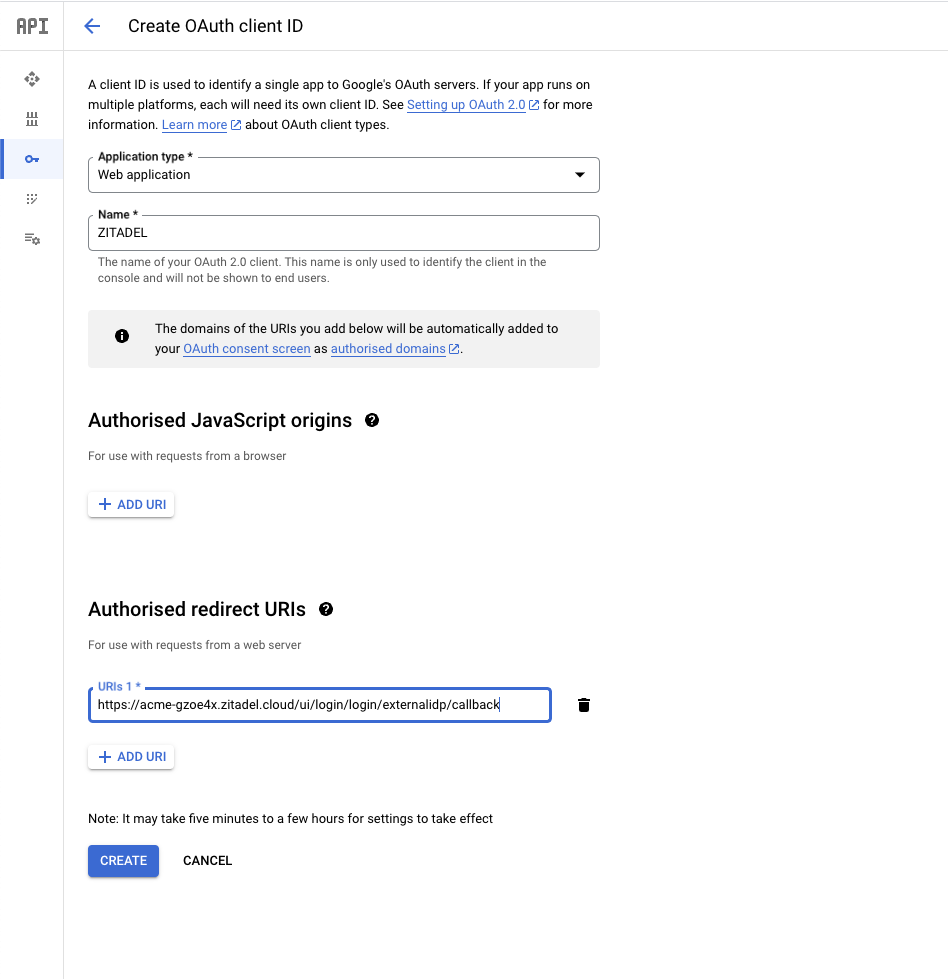
3. Click on "+ CREATE CREDENTIALS" and choose "OAuth client ID".
4. Choose "Web application" as application type and give a name.
5. Set a name (e.g., `Blockbrain SSO Client`).
6. Paste the **ZITADEL Callback URL** you copied before to the Authorised redirect URIs.
#### 2. Finalize the Configuration in ZITADEL
**Client ID and Key (Secret)**[****](https://zitadel.com/docs/guides/integrate/identity-providers/google#client-id-and-secret)
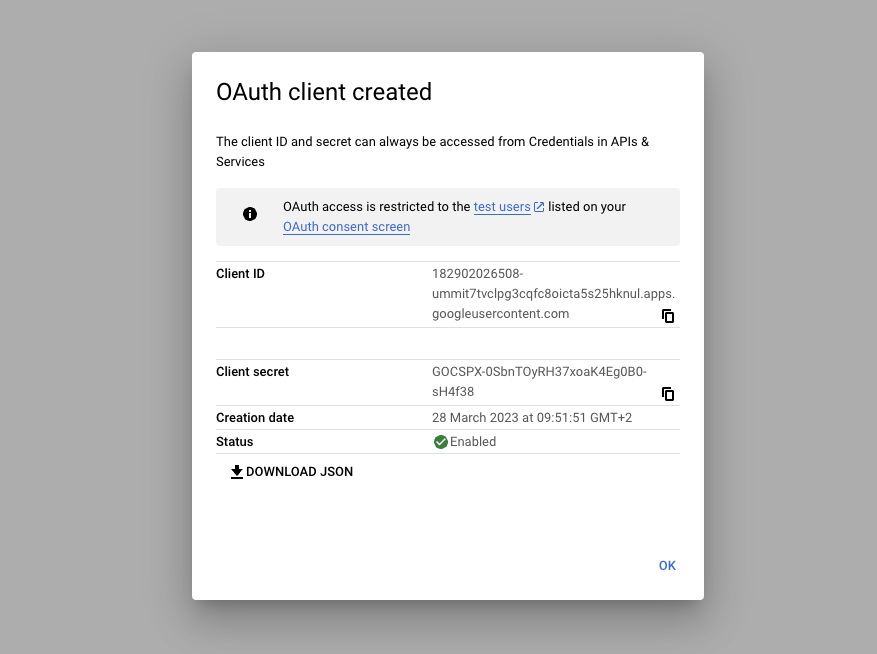
After you've created the project, you will receive **Client ID** and **Client Key (Secret)**.
> **Important**: For security reasons, do not send your Client Secret or Client ID to Blockbrain via email or chat.
>
> You can configure Google as your identity Provider directly in your Blockbrain account admin interface.
**To complete the setup**:
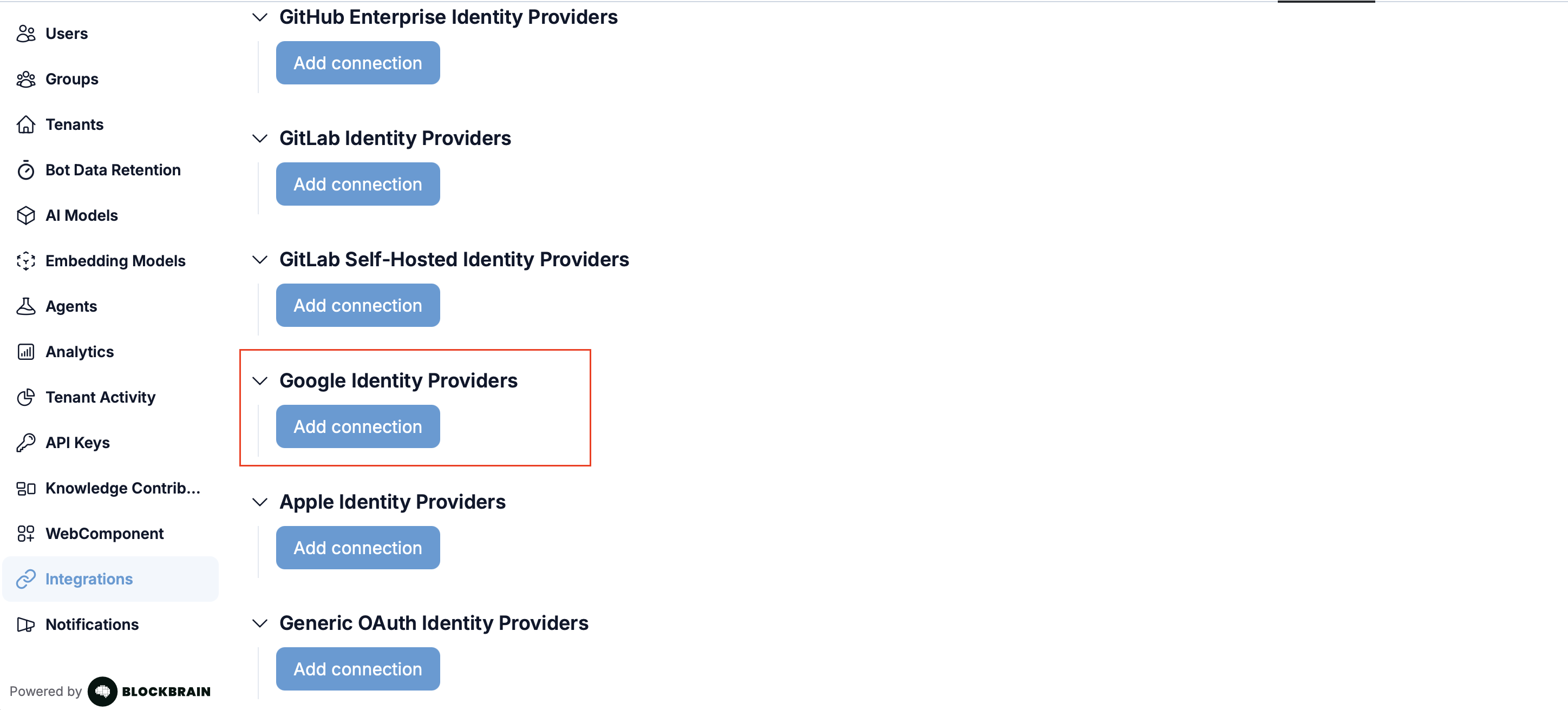
1. Log in to your Blockbrain admin interface with your admin account
2. Navigate to **Admin** > **Integrations** > **Google Identity Providers**
3. Click **Add connection**
4. Enter your **Client ID** and **Client Secret** from your Google Cloud project
5. Save your changes by clicking **Connect**
If you encounter any issues, please contact Blockbrain support.
#### 3. Logging in
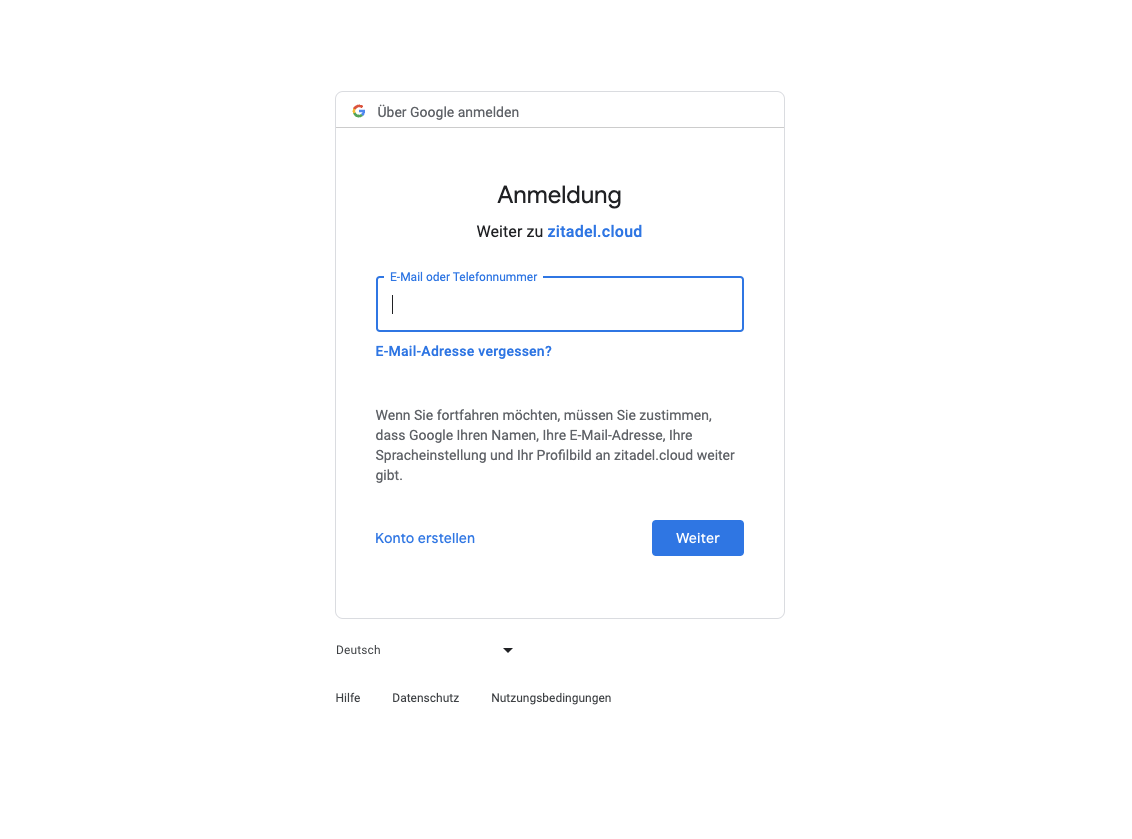
After successful completion of the setup your contact at Blockbrain will let you know that Google SSO is now available to users of your instance. \
Just click the "Google"-Button and enter your credentials to sign on.
---
# Agent Instructions
This documentation is published with GitBook. GitBook is the documentation platform designed so that both humans and AI agents can read, navigate, and reason over technical content effectively. Learn more at gitbook.com.
## Querying This Documentation
If you need additional information that is not directly available in this page, you can query the documentation dynamically by asking a question.
Perform an HTTP GET request on the current page URL with the `ask` query parameter, and the optional `goal` query parameter:
```
GET https://docs.blockbrain.ai/for-admins/google-sso.md?ask=&goal=
```
`ask` is the immediate question: it should be specific, self-contained, and written in natural language.
`goal` is optional and describes the broader end goal you are ultimately trying to accomplish on behalf of the user. GitBook uses it to tailor the answer towards what is most useful for that goal.
The response will contain a direct answer to the question and relevant excerpts and sources from the documentation.
Use this mechanism when the answer is not explicitly present in the current page, you need clarification or additional context, or you want to retrieve related documentation sections.