How to Embed a Blockbrain Bot into Bosch any.site
This guide provides a step-by-step walkthrough for embedding a Blockbrain Bot inside Bosch any.site.
1. Open any.site and start a new bot connection
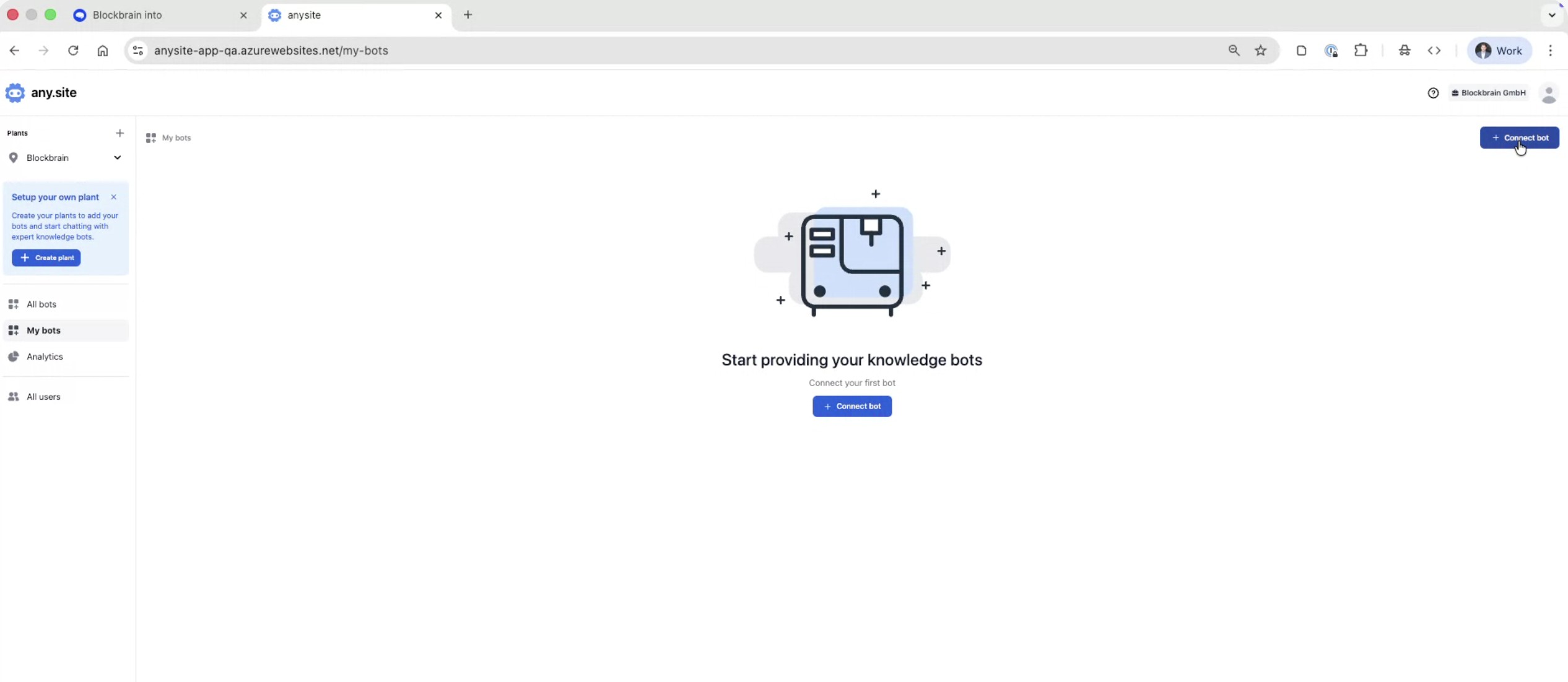
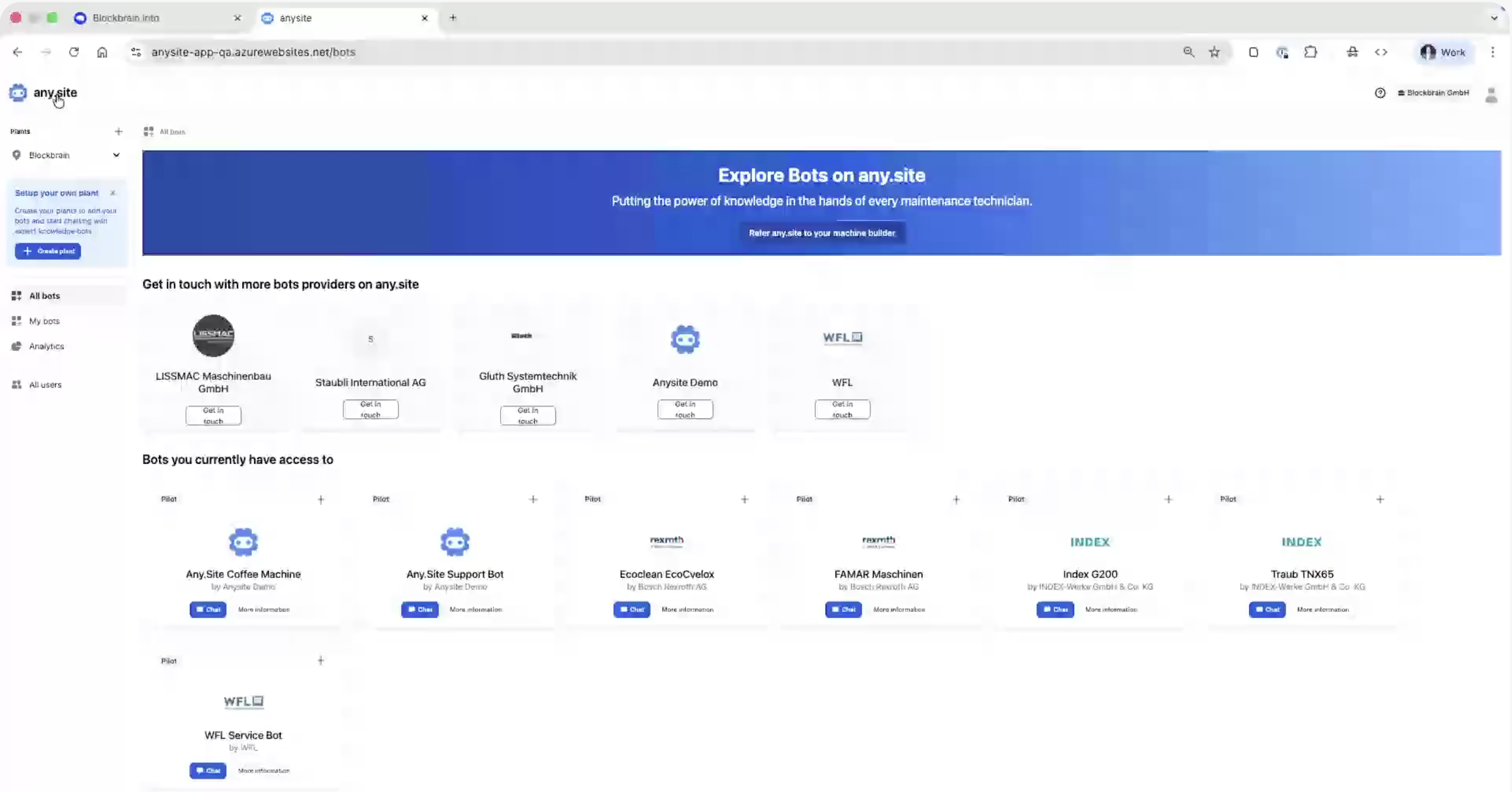
In any.site, click “My bots” on the left-side navigation.

Click the “Connect bot” button.

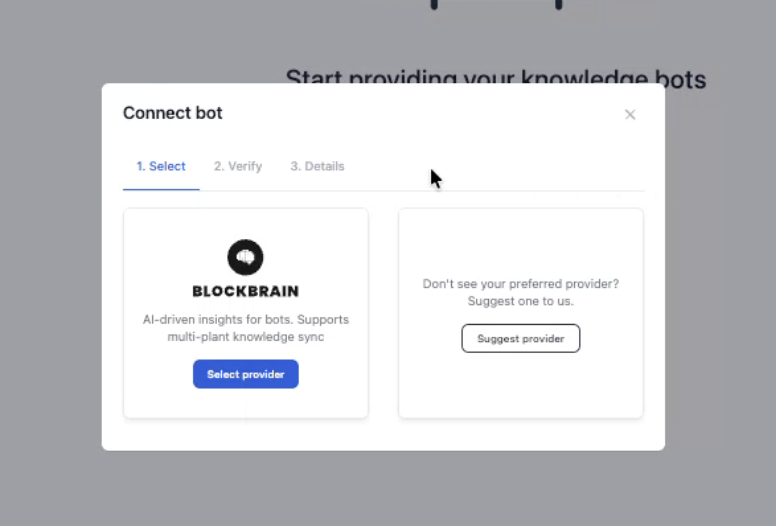
Select Blockbrain as the provider.

2. Create and copy your Blockbrain API Key
In Blockbrain:
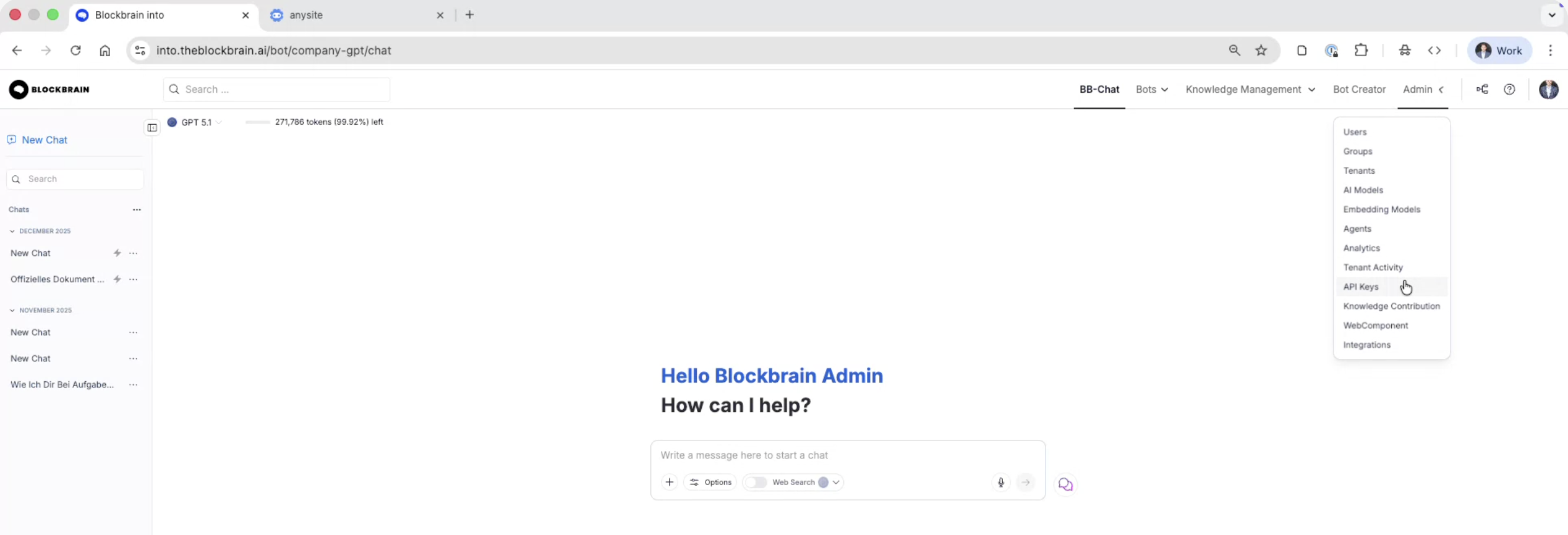
Go to the Blockbrain website.
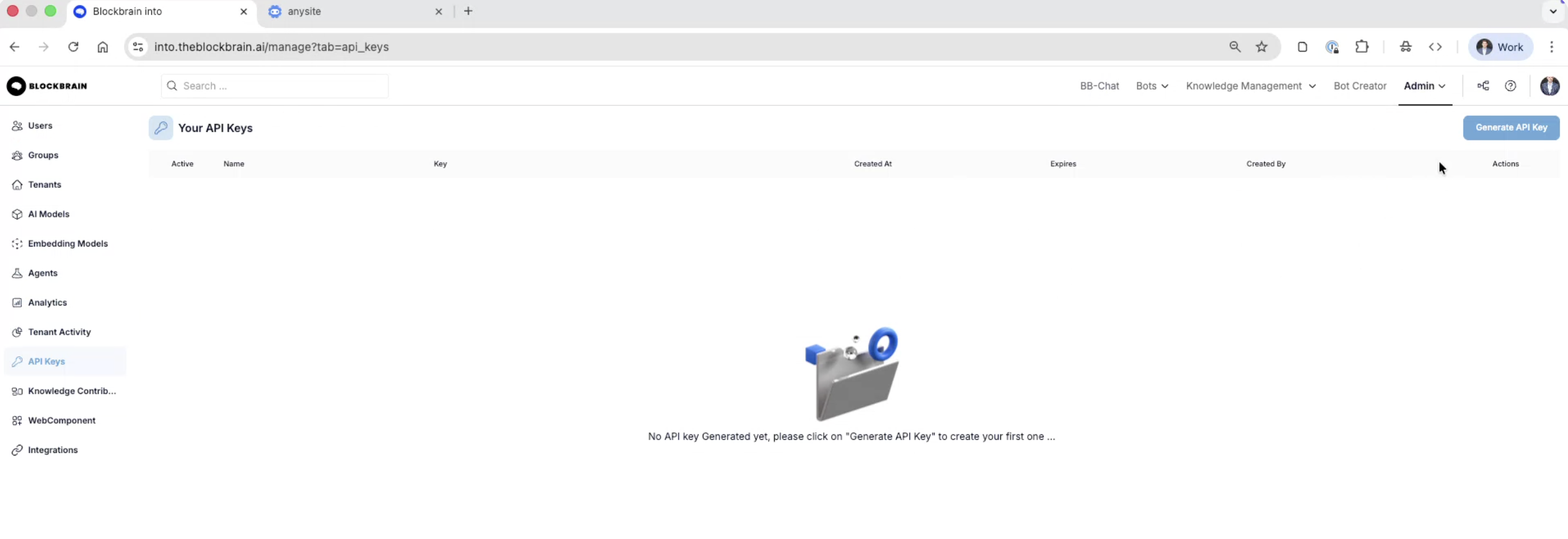
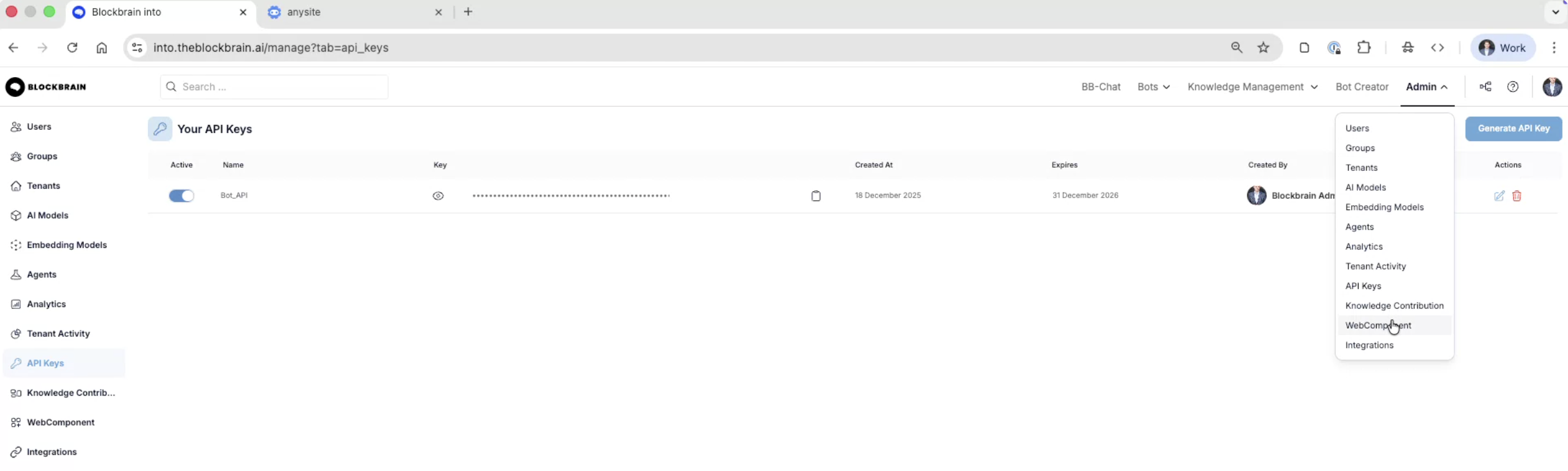
Click Admin and open the API Keys tab

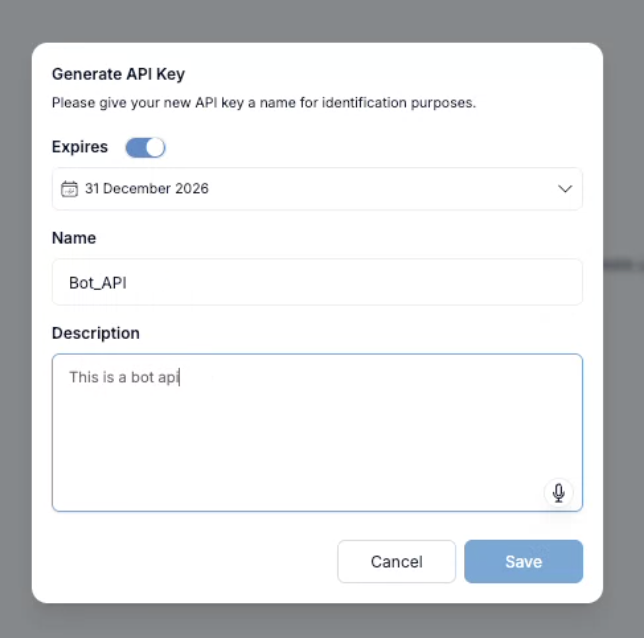
Click Generate API key.

Name your API Key and add a description.

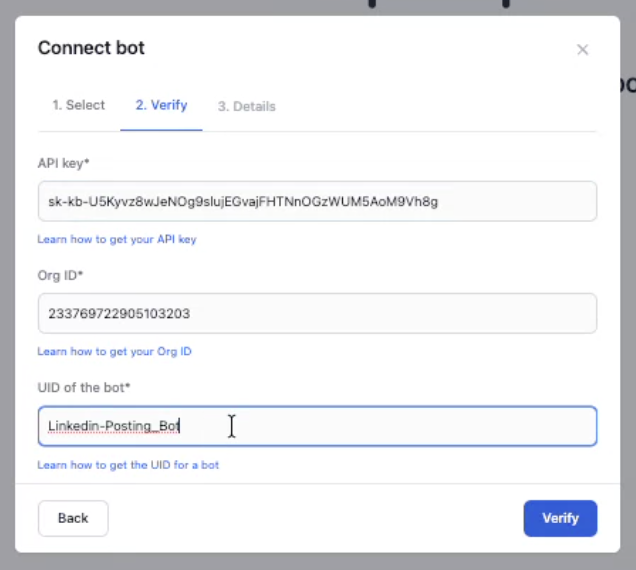
Copy the API Key.

In any.site:
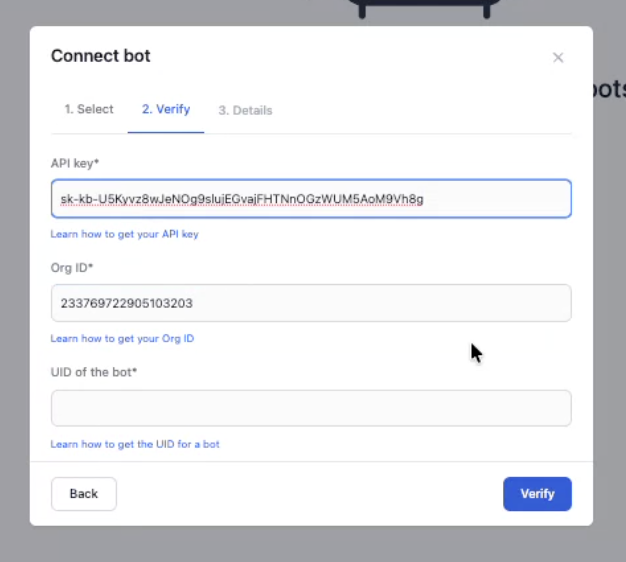
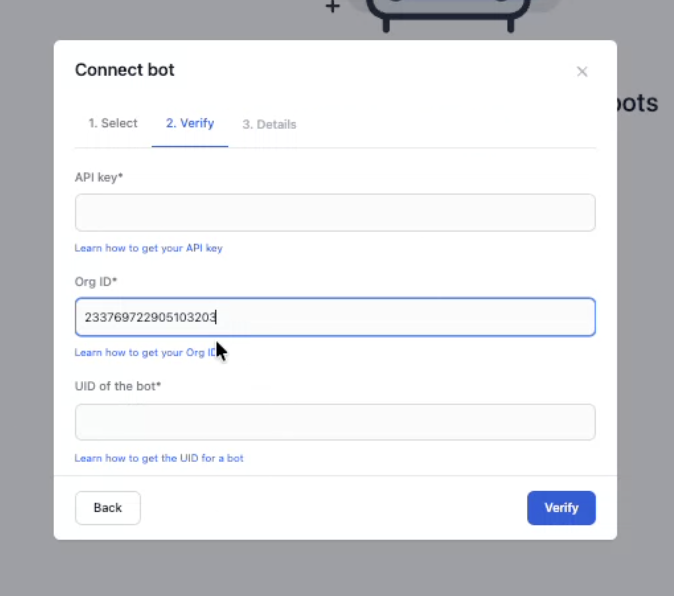
Paste the API Key into the API Key field in any.site.

3. Copy your Org Key
In Blockbrain:
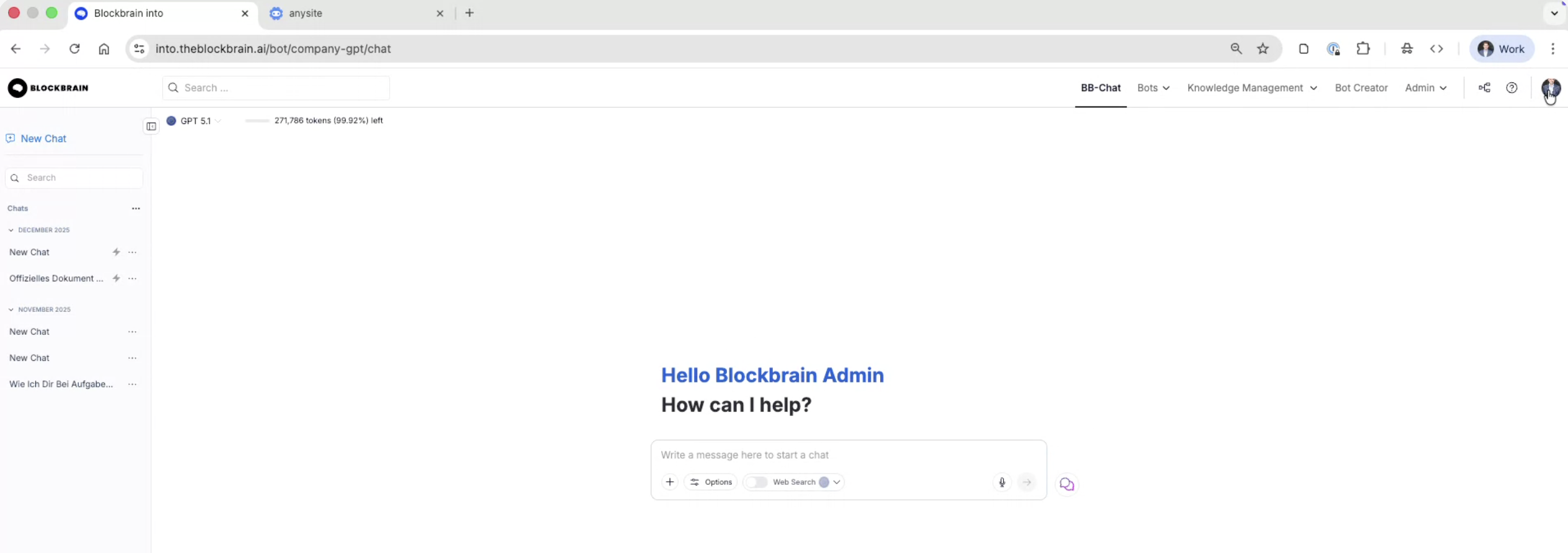
Open the Blockbrain website.
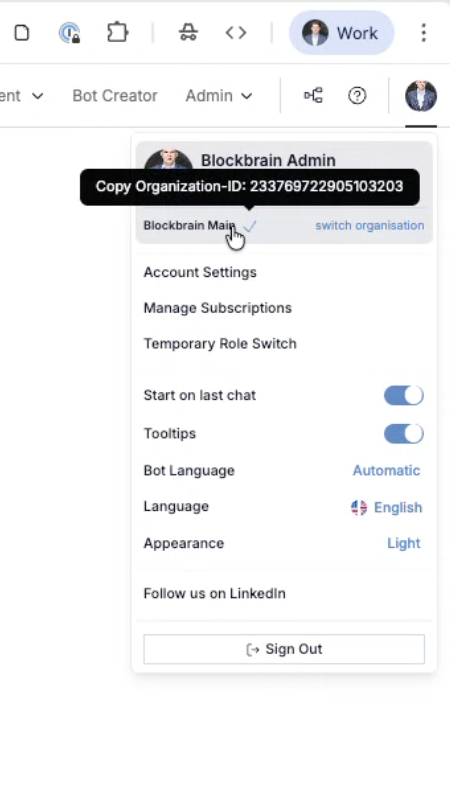
Click your profile on the upper-right corner.

Copy your Org Key.

In any.site:
Paste the Org Key into the Org Key field in any.site.

4. Create a Web Component UID (bot mapping)
In Blockbrain:
Go to the Blockbrain website.
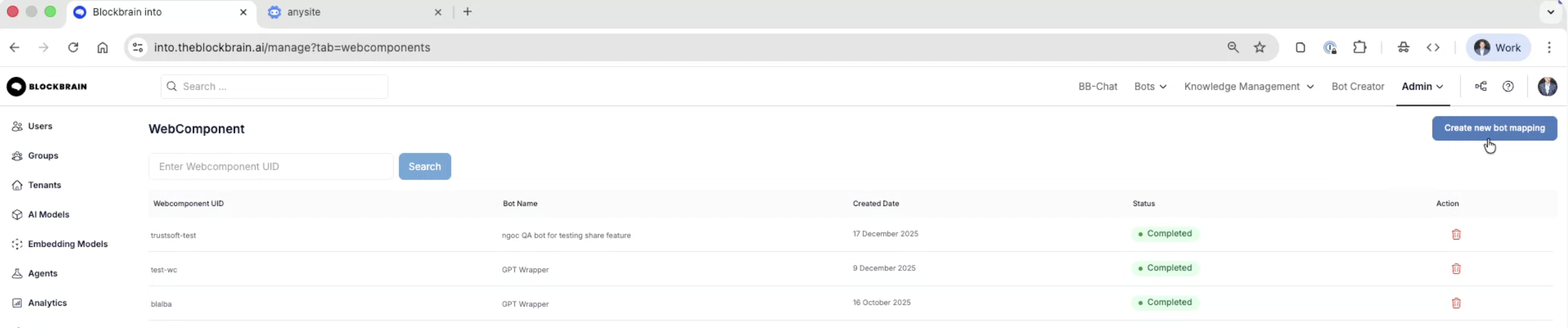
Click Admin → go to the Web Components tab.

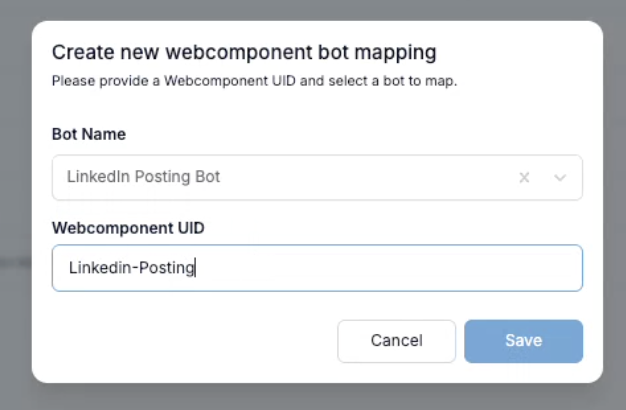
Click Create new bot mapping.

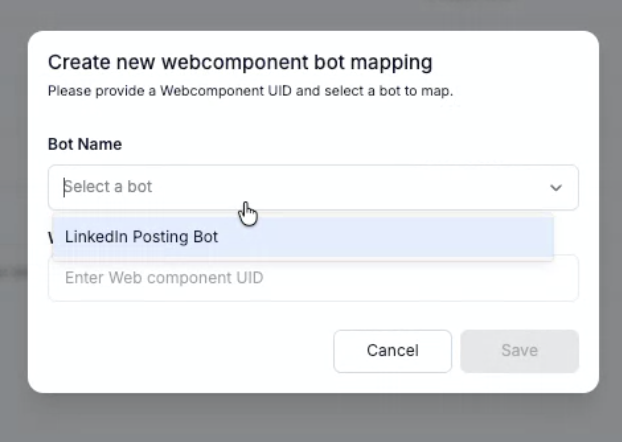
Select the chosen bot you want to embed.

Create a name for the Web Component UID (this is your mapping name).

After creating the new bot mapping, copy the ID.

Back in any.site:
Paste that ID into the UID / Web Component ID field (wording may vary).

5. Finalize setup in any.site
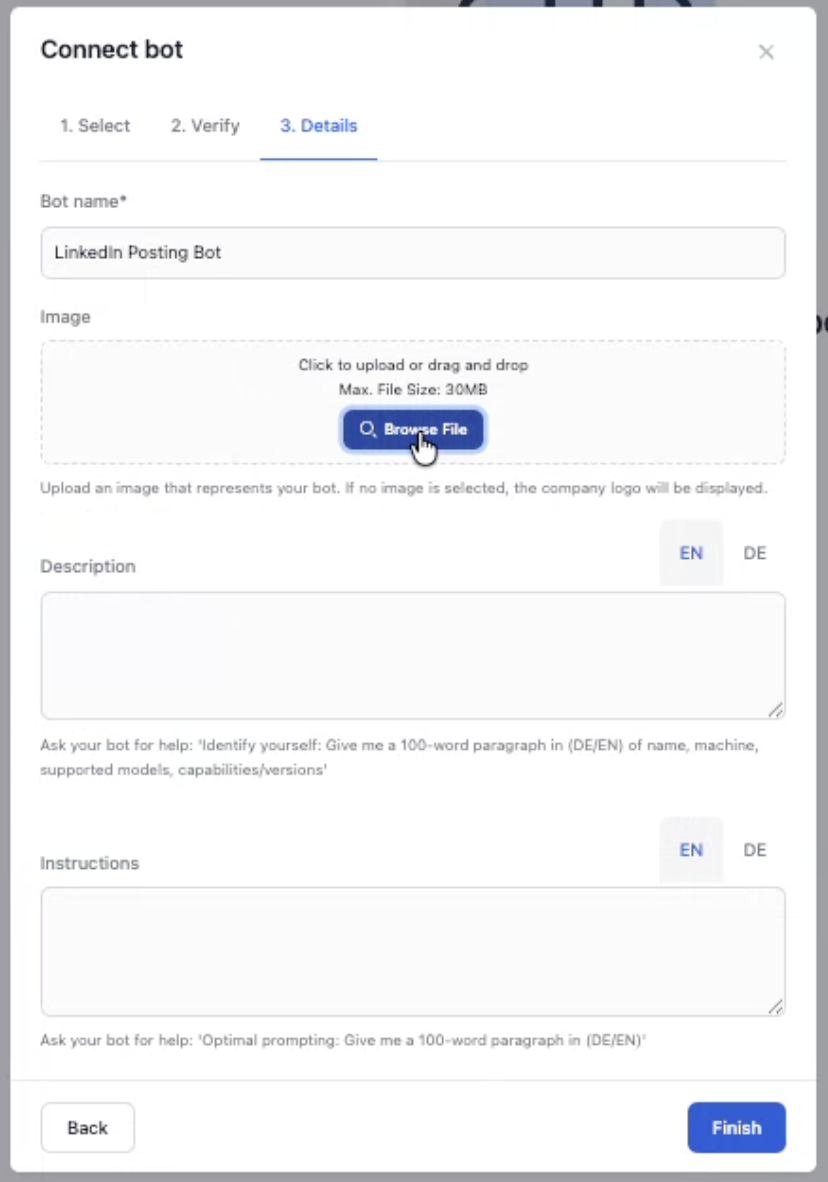
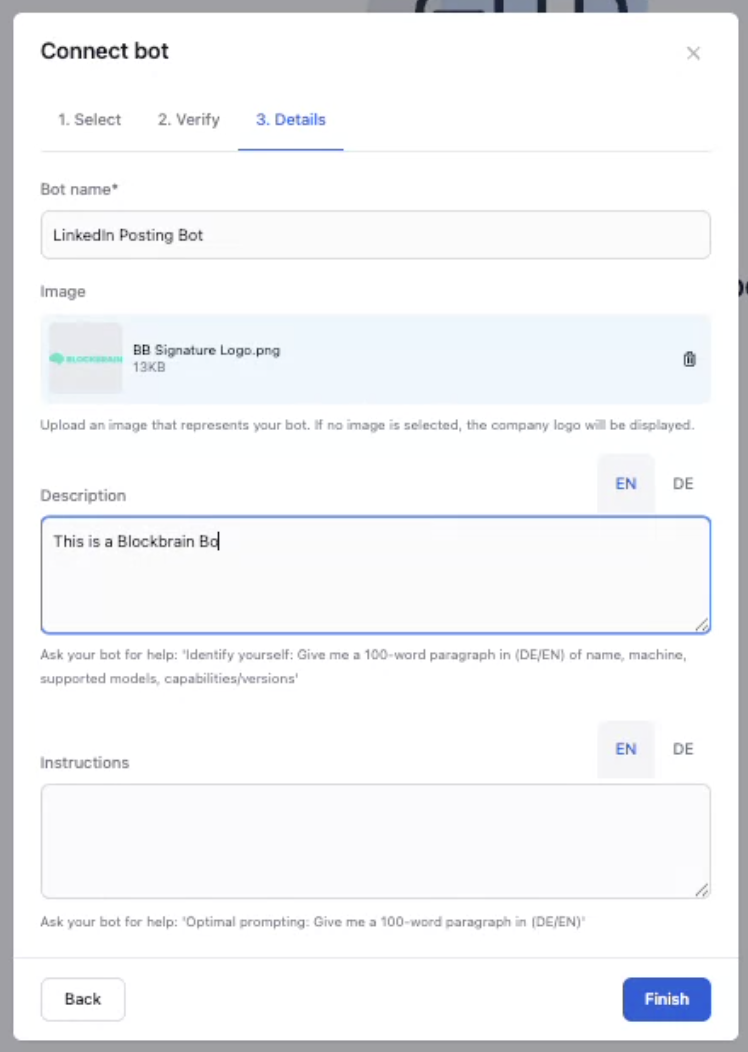
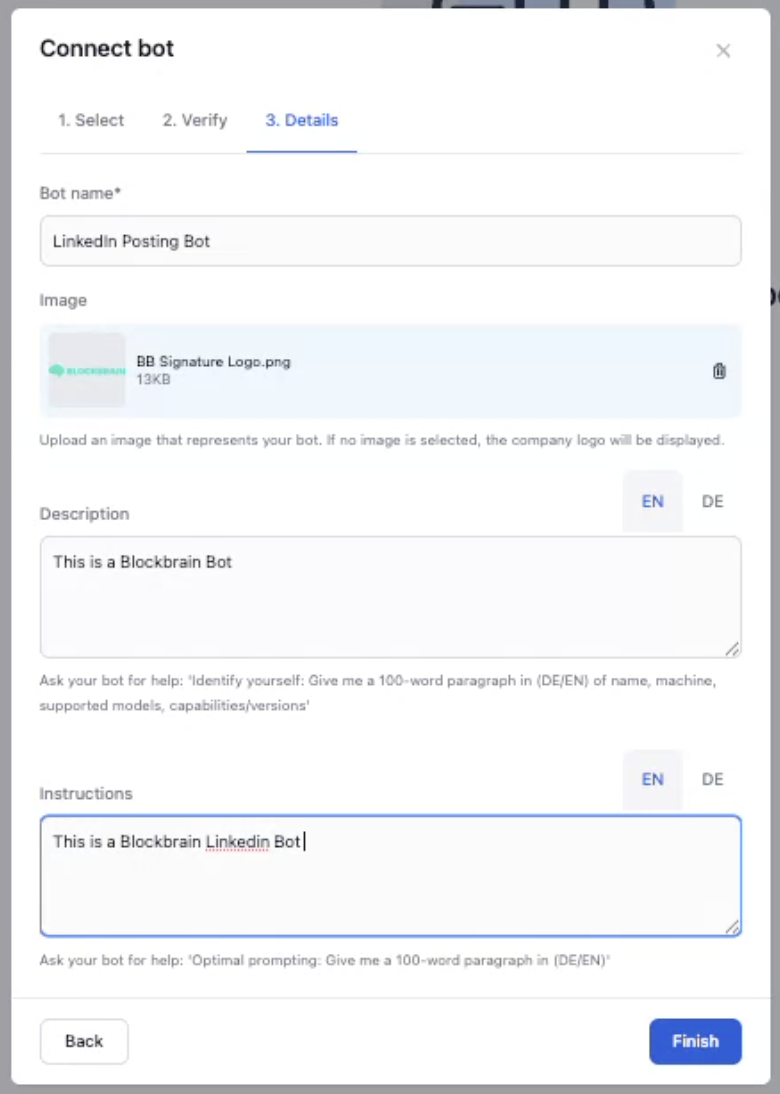
Add an image that represents your bot.

Include a short description.

Add instructions for the bot (optional but recommended).

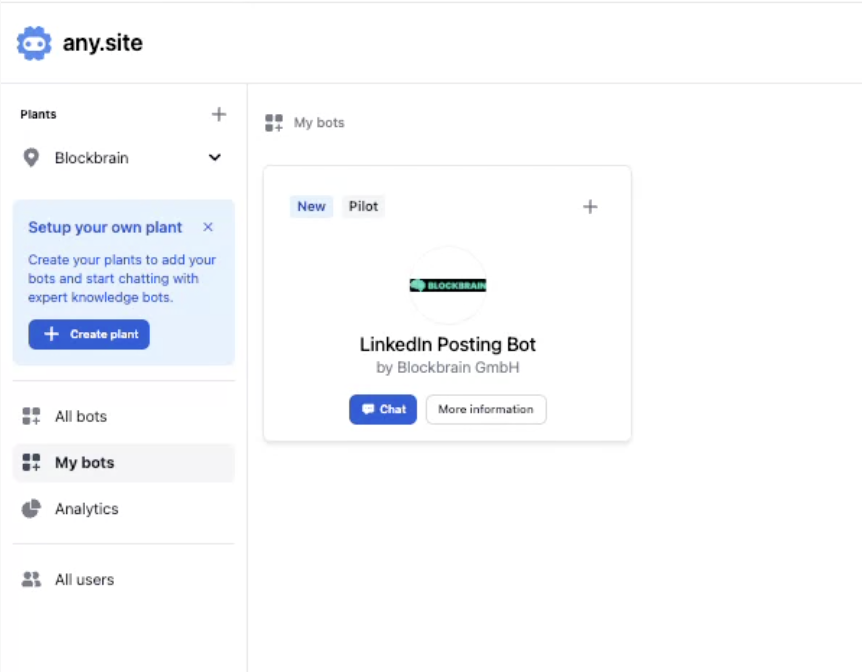
Click Finish

Last updated