> For the complete documentation index, see [llms.txt](https://docs.blockbrain.ai/llms.txt). Markdown versions of documentation pages are available by appending `.md` to page URLs; this page is available as [Markdown](https://docs.blockbrain.ai/for-users/add-ins.md).
# Add-Ins
Use Blockbrain right inside Word and Outlook, next to the documents and emails you are working on.
The Blockbrain add-ins bring your Blockbrain assistant, bots and knowledge into Microsoft Word and Outlook. You keep working in the document or email you have open, and Blockbrain works right next to it in a side panel. No switching to the browser, no copy and paste.
### Available add-ins
{% columns %}
{% column %}
#### Word
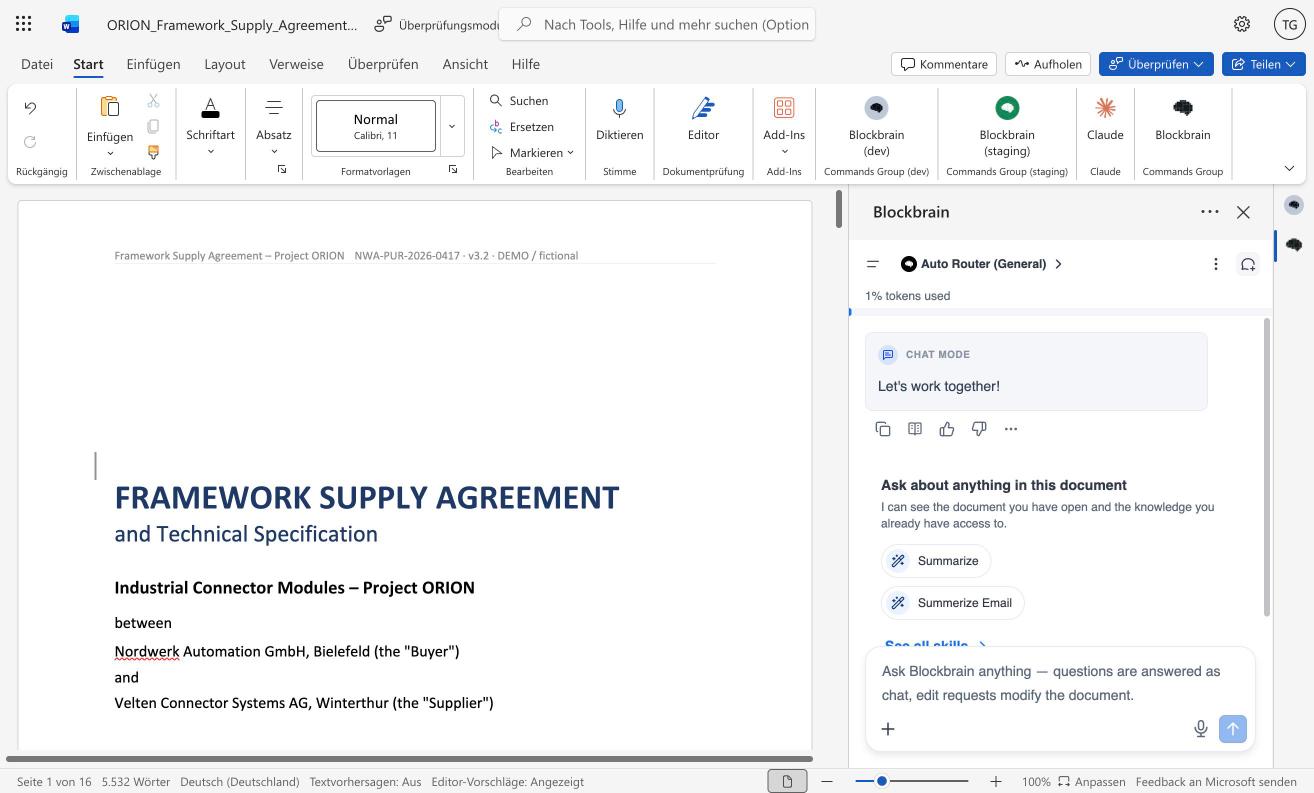
Blockbrain in Word
Summarize and ask about the document you have open, rewrite passages as tracked changes, build native Word tables, and bring in files and knowledge sources.
[Word Add-in – Quick Tour](/for-users/add-ins/word-add-in-quick-tour.md)
{% endcolumn %}
{% column %}
#### Outlook
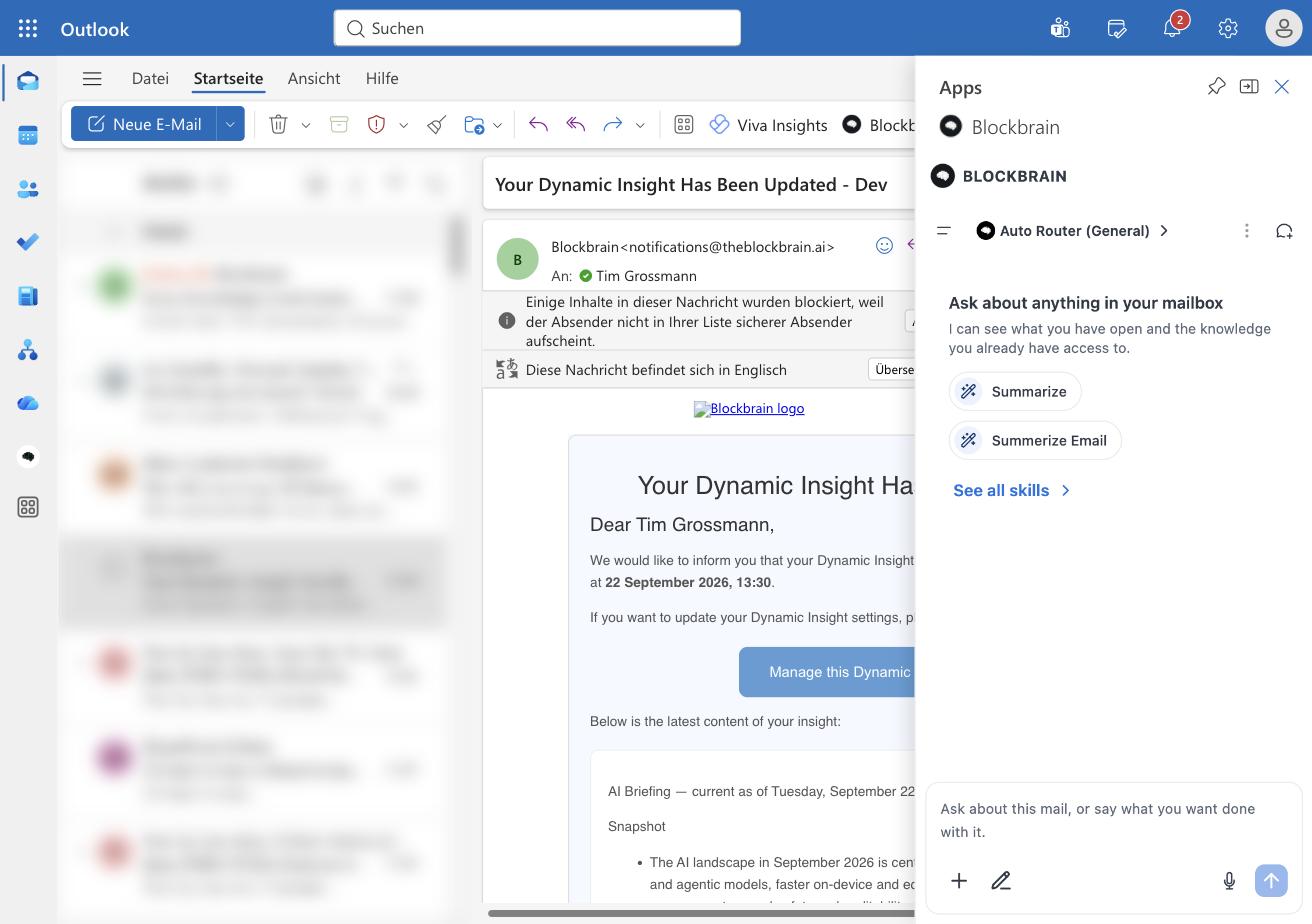
Blockbrain in Outlook
Summarize threads, draft replies with a tone check, get a brief before a meeting, and manage your calendar and mailbox, with every change waiting for your OK.
[Outlook Add-in – Quick Tour](/for-users/add-ins/outlook-add-in-quick-tour.md)
{% endcolumn %}
{% endcolumns %}
### What you need
* **Word or Outlook for Microsoft 365**, on the desktop or on the web, signed in with your work account.
* **A Blockbrain account.** You sign in to the add-in with your work email.
* **The add-in installed.** Usually your IT team rolls it out for everyone.
### How you get the add-ins
* **Your IT team rolls out Blockbrain.** Nothing to install. After the rollout, Blockbrain appears in Word and Outlook. Open it and sign in with your work email.
* **You want to try it on your own first.** [Sideload an Add-in for Testing](/for-users/add-ins/sideload-an-add-in-for-testing.md) for a short test, and only with your IT team's approval.
* **You are the admin who deploys it.** Follow [Add-Ins for admins](/for-admins/add-ins.md).
### Where to find Blockbrain
| Add-in | Where to open it |
| ------- | -------------------------------------------------------------------------- |
| Word | **Home** ribbon → **Blockbrain** |
| Outlook | Open an email, then **Apps** or the **More actions** menu → **Blockbrain** |
{% hint style="info" %}
**You stay in control.** In Word, edits arrive as suggestions you apply or discard, and applied edits are tracked changes you can still reject. In Outlook, Blockbrain asks for your approval before it changes your calendar or mailbox.
{% endhint %}
### Next steps
* New to the add-ins? Start with the [Word Add-in – Quick Tour](/for-users/add-ins/word-add-in-quick-tour.md) or the [Outlook Add-in – Quick Tour](/for-users/add-ins/outlook-add-in-quick-tour.md).
* Blockbrain not in your ribbon yet? Ask your IT team, or with their approval [sideload it for a quick test](/for-users/add-ins/sideload-an-add-in-for-testing.md).
---
# Agent Instructions
This documentation is published with GitBook. GitBook is the documentation platform designed so that both humans and AI agents can read, navigate, and reason over technical content effectively. Learn more at gitbook.com.
## Querying This Documentation
If you need additional information that is not directly available in this page, you can query the documentation by asking a question.
Perform an HTTP GET request on the following URL with the `ask` and `goal` query parameters:
```
GET https://docs.blockbrain.ai/for-users/add-ins.md?ask=&goal=
```
`ask` is the immediate question: it should be specific, self-contained, and written in natural language.
`goal` is what the user is ultimately trying to achieve, the reason they need the answer. Sharing it helps GitBook give you a better, more relevant answer. A goal is most helpful when it describes the outcome the user wants rather than restating the question. For example, with `ask=how do I create an API token`, a goal like `automate deployments from our CI pipeline` lets GitBook tailor the answer to that use case.
The response will contain a direct answer to the question and relevant excerpts and sources from the documentation.
Use this mechanism when the answer is not explicitly present in the current page, you need clarification or additional context, or you want to retrieve related documentation sections.