> For the complete documentation index, see [llms.txt](https://docs.blockbrain.ai/llms.txt). Markdown versions of documentation pages are available by appending `.md` to page URLs; this page is available as [Markdown](https://docs.blockbrain.ai/for-users/add-ins/sideload-an-add-in-for-testing.md).
# Sideload an Add-in for Testing
Try the Word or Outlook add-in on your own account before a rollout. For short tests only, and only with approval from your IT team.
{% hint style="warning" %}
**For testing only, and only with approval from your IT team.** Sideloading installs an add-in for your own account, outside your organization's central deployment. Many organizations do not allow this without approval, and some switch it off completely. To give the add-in to more people, your IT team deploys it centrally, as described in [Add-Ins for admins](/for-admins/add-ins.md).
{% endhint %}
### When to use this
Sideloading is for a quick test by one person, for example to try Blockbrain in Word or Outlook for a few days before your organization decides on a rollout.
| Use sideloading | Use central deployment instead |
| -------------------------------------------------------------------- | -------------------------------------------------------------------- |
| You want to try the add-in yourself, briefly, with your IT team's OK | A team, a department or the whole organization should get the add-in |
| Your organization has not deployed Blockbrain yet | Blockbrain is already in your Word or Outlook ribbon |
### Before you start
* **Approval from your IT team** to install a custom add-in for testing.
* **A Blockbrain account.** You sign in with your work email. Blockbrain also has to be activated for your organization. If the panel says it is not switched on for your organization, contact your Key Account Manager.
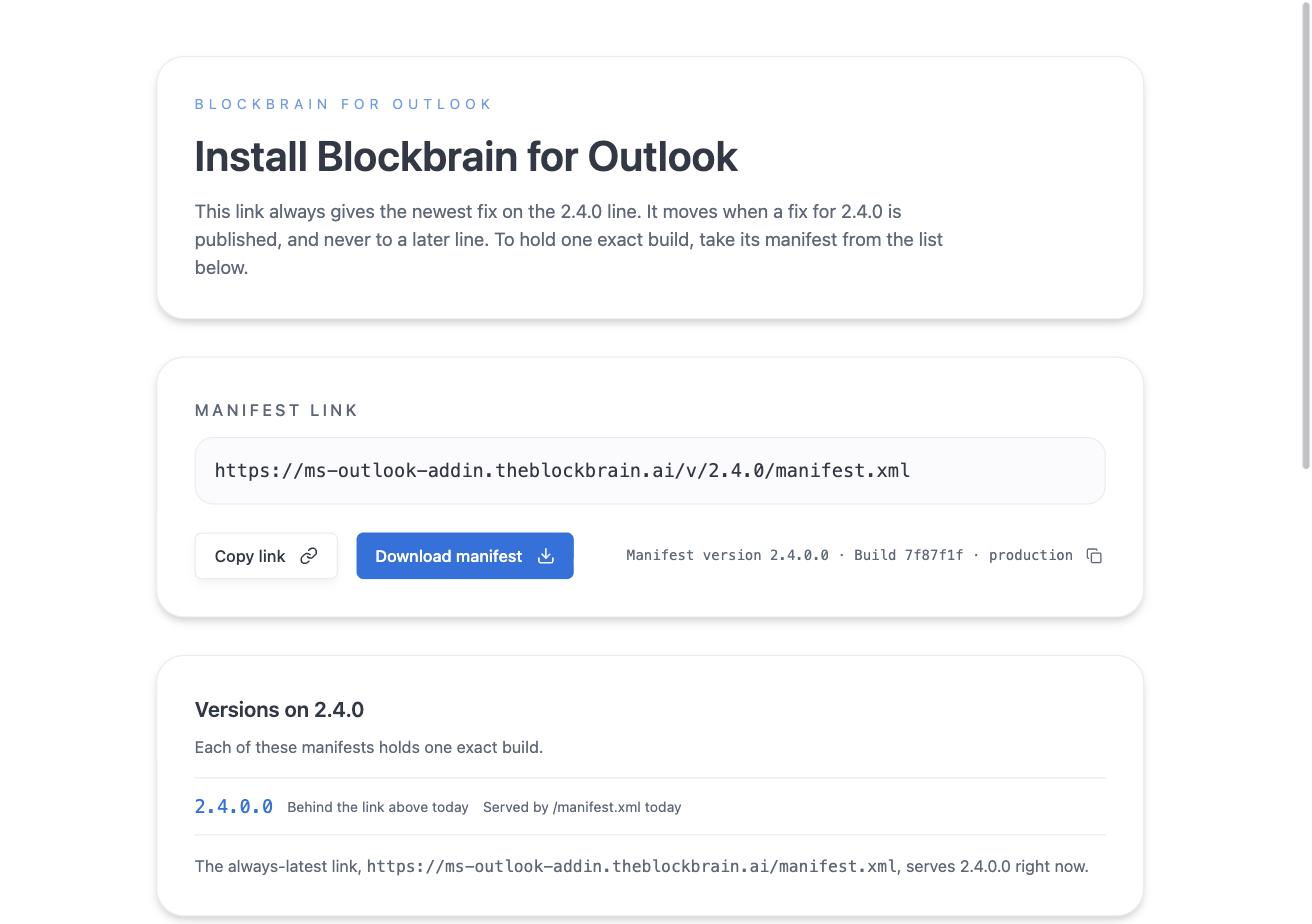
* **The manifest file** of the add-in you want to test. Open its install page and select **Download manifest**. This saves a small `manifest.xml` file to your computer.
| Add-in | Install page |
| ------- | ----------------------------------------------------------------------------------------------- |
| Word | [ms-word-addin.theblockbrain.ai/v/2.0.0](https://ms-word-addin.theblockbrain.ai/v/2.0.0/) |
| Outlook | [ms-outlook-addin.theblockbrain.ai/v/2.4.0](https://ms-outlook-addin.theblockbrain.ai/v/2.4.0/) |
Each install page has a Download manifest button (Outlook 2.4.0 shown)
### Test the Word add-in
The quickest way to test the Word add-in is Word on the web.
{% stepper %}
{% step %}
#### Open a document in Word on the web
Open Word in your browser, for example from office.com, and create or open a document.
{% endstep %}
{% step %}
#### Open the add-in settings
Select **Home → Add-ins**, then **More Settings**.
{% endstep %}
{% step %}
#### Upload the manifest
In the **Office Add-ins** dialog, select **Upload My Add-in**, browse to the Word manifest file you downloaded, and select **Upload**.
{% endstep %}
{% step %}
#### Open Blockbrain and sign in
Blockbrain appears on the **Home** ribbon. Select it to open the panel, then sign in with your work email. The [Word Add-in – Quick Tour](/for-users/add-ins/word-add-in-quick-tour.md) shows what to try first.
{% endstep %}
{% endstepper %}
{% hint style="info" %}
Word on the web keeps a sideloaded add-in in your browser's storage. If you clear the browser cache or switch to another browser, upload the manifest again.
{% endhint %}
Testing in Word for Mac
1. In Finder, press **Cmd + Shift + G** and go to `~/Library/Containers/com.microsoft.Word/Data/Documents/wef`. Create the `wef` folder if it does not exist.
2. Copy the Word manifest file into this folder.
3. Restart Word, open a document, select **Home → Add-ins** and choose Blockbrain.
Testing in Word for Windows
The Word desktop app for Windows has no simple file upload for test add-ins. For a quick test, use Word on the web with the same account. For a test in the desktop app, ask your IT team to deploy the add-in to you or a small pilot group.
### Test the Outlook add-in
{% stepper %}
{% step %}
#### Open the add-in window
In your browser, go to [aka.ms/olksideload](https://aka.ms/olksideload). Outlook on the web opens with the **Add-Ins for Outlook** window.
{% endstep %}
{% step %}
#### Add the manifest
Select **My add-ins**. Under **Custom Addins**, select **Add a custom add-in → Add from file**, choose the Outlook manifest file you downloaded, and select **Install**.
{% endstep %}
{% step %}
#### Open Blockbrain and sign in
Open an email and start Blockbrain from the **Apps** button or the **More actions** menu. Sign in with your work email. The [Outlook Add-in – Quick Tour](/for-users/add-ins/outlook-add-in-quick-tour.md) shows what to try first.
{% endstep %}
{% endstepper %}
{% hint style="info" %}
Outlook no longer offers **Add from URL** for custom add-ins, so always download the manifest file first. The add-in is added to your mailbox, so it also shows up in Outlook desktop when you are signed in with the same account.
{% endhint %}
### Remove the add-in after testing
Remove the test add-in when you are done, and before your IT team deploys Blockbrain centrally, so you do not end up with two copies.
| Where you tested | How to remove it |
| ---------------- | --------------------------------------------------------------------------------------------------------- |
| Word on the web | Clear your browser cache. The sideloaded add-in is removed with it. |
| Word for Mac | Delete the manifest file from the `wef` folder and restart Word. |
| Outlook | Go to **More apps → Add apps → Manage your apps**, find Blockbrain, and select **More options → Remove**. |
### Troubleshooting
| What you see | What to do |
| ----------------------------------------------------------- | -------------------------------------------------------------------------------------------------------------------------------- |
| No **Upload My Add-in** or **Custom Addins** option | Your organization has switched off personal add-ins. Ask your IT team, who can deploy Blockbrain to a small pilot group instead. |
| Blockbrain says it is not switched on for your organization | Blockbrain has not activated the add-in for your organization yet. Contact your Key Account Manager. |
| The Word add-in is gone after a while | The browser cache was cleared, or you are in another browser. Upload the manifest again. |
---
# Agent Instructions
This documentation is published with GitBook. GitBook is the documentation platform designed so that both humans and AI agents can read, navigate, and reason over technical content effectively. Learn more at gitbook.com.
## Querying This Documentation
If you need additional information that is not directly available in this page, you can query the documentation by asking a question.
Perform an HTTP GET request on the following URL with the `ask` and `goal` query parameters:
```
GET https://docs.blockbrain.ai/for-users/add-ins/sideload-an-add-in-for-testing.md?ask=&goal=
```
`ask` is the immediate question: it should be specific, self-contained, and written in natural language.
`goal` is what the user is ultimately trying to achieve, the reason they need the answer. Sharing it helps GitBook give you a better, more relevant answer. A goal is most helpful when it describes the outcome the user wants rather than restating the question. For example, with `ask=how do I create an API token`, a goal like `automate deployments from our CI pipeline` lets GitBook tailor the answer to that use case.
The response will contain a direct answer to the question and relevant excerpts and sources from the documentation.
Use this mechanism when the answer is not explicitly present in the current page, you need clarification or additional context, or you want to retrieve related documentation sections.